YouTube Video Editor: Create Long-Form Videos and Shorts
Learn how to turn one video into multiple variations, from long-form hooks to repurposed Shorts, with a video editor built for YouTube creators.
Most creators treat a YouTube video like a single finished thing. Shoot it, edit it, upload it, move on to the next one. But that means you only get one shot at a hook, one thumbnail, one format, when the same footage could just as easily become three or four videos, each testing something different or reaching a different crowd.
Building video variations doesn’t mean churning out filler. It means squeezing more out of one script or one shoot: a long-form video with its own hook and pacing, a stack of Shorts pulled from the same footage, maybe a second cut for a different audience or channel. The editing itself doesn’t change much, you’re still trimming dead air, syncing captions, balancing audio.
What changes is where your time goes once that busywork is out of the way: into the hook, the pacing, the thumbnail, and having enough versions to actually know what’s working.
Here’s what matters when you’re using a YouTube video editor to build those variations, whether that’s a simple app or an all-in-one video creation platform like Videfy, for long-form, Shorts, or turning one into the other, and how you can tell if what you’re using counts as the best video editor for YouTube for that job.
How to Hook Viewers in the First 15 Seconds of a YouTube Video
YouTube gives you a bit more room than a short-form feed, but not much. People decide whether to stay or bail in the first 15 to 30 seconds. A slow wind-up is the fastest way to lose them.
Open with the payoff, not the setup. Show a glimpse of the result, the finished build, the reaction, before you get into how you got there. Save the full context for after you’ve earned the click.
Say something specific instead of something vague. "This video is about editing tips" doesn’t land. "Here’s the exact reason your last three videos flopped" does, because it points at something the viewer already recognizes in themselves.
And skip the channel intro. If someone clicked, they already know who you are. Save the "hey guys, welcome back" for your outro instead.
Best YouTube Video Formats to Keep People Watching
Walking in with a structure already in mind saves a lot of back and forth once you’re actually in the timeline. Three formats in particular keep showing up for a reason.
The "three things people get wrong" format works well for anything educational. Open with the setup, run through each point with a visual change on every one, close with a reason to subscribe or watch the next video.
The before-and-after case study fits reviews, transformations, service work, agency work, basically anything with a clear starting point and a clear result. Show the problem, show the process, let the result do the selling.
The "stop doing this" format is built to pull comments. Call out a habit people recognize, show a better way to do it, back it up with an example, point people toward your next video.
How to Edit a YouTube Video for Better Retention
Retention has less to do with one big hook and more to do with not giving people a reason to leave somewhere in the middle. It’s really what you’re solving for every time you sit down to edit a YouTube video. Some habits that make a real difference:
Cut on action, not on pauses. If someone stops to think, or repeats themselves setting up a point, that’s usually where the cut belongs.
Change the visuals every so often: a new camera angle, a graphic, or a bit of B-roll. That keeps a talking head from staying static for minutes at a stretch. Long-form videos give you more room than Shorts, but not unlimited room.
Match captions to how the person is actually speaking, so the words land as they’re said instead of a beat ahead or behind.
Leave a small pause where the speaker naturally pauses, rather than stacking every line back to back. If there’s music under narration, keep it low, somewhere around 10 to 15 percent, so it adds energy without stepping on what’s being said.
Why Thumbnails and Titles Matter as Much as the Edit
A video has to get clicked before any of the editing work even matters. A great video with a flat thumbnail and a vague title just won’t get the views to prove it.
A good thumbnail shows one clear subject or moment, not three things fighting for attention. A good title tells people what they’ll get, or asks a specific enough question that they need the answer. The two should work together instead of repeating each other: if the thumbnail already shows the answer, let the title ask the question, and the other way around.
This part sits outside the actual edit, but it’s worth testing the same way you’d test a hook. Swap the thumbnail or the title on the same video and watch how much that alone changes who ever sees the edit you spent hours on.
What Should You Look for in a YouTube Editor?
Not every YouTube editor is built for the same job. Some are fine for a quick trim and a music swap. Others are meant to carry a video from a blank script all the way through to something ready to upload.
If you only open a YouTube editor once in a while, a lightweight app covers most of what you need. Once you’re publishing on a schedule, or trying to get more than one video out of the same footage, the gap between a basic YouTube editor and a full production platform shows up fast.
A couple of things worth checking before you settle on one:
- Does it generate a voiceover and captions, or just cut clips together?
- Can it turn a long video into Shorts without a whole second export process?
- Can it hold more than one version of a video without duplicating the entire project from scratch?
That’s usually enough to tell a basic YouTube editor apart from the best video editor for YouTube, for a channel that’s actually trying to grow, and it’s worth thinking through before you sit down to edit a YouTube video with a new tool for the first time.
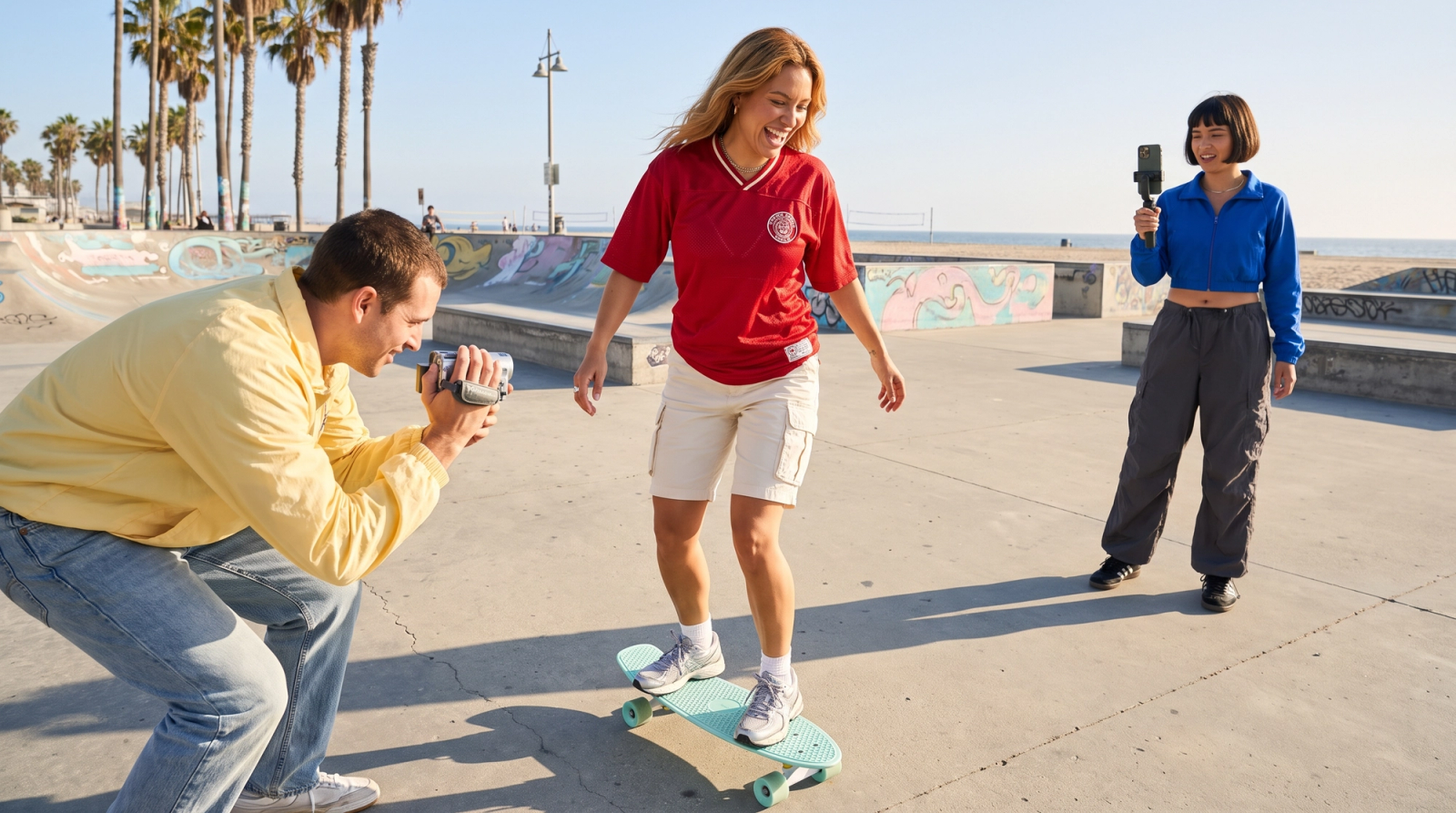
Why You Need Multiple Video Variations for YouTube
Plenty of creators build a video, upload it once, and hope for the best. It’s a rough way to find out what actually works. It helps to treat a video less like a single finished piece and more like a starting point you can branch off from.
The same footage and structure can turn into several video variations depending on what you change. A different opening line or hook, while the body stays the same, to see which one actually holds attention. A long-form video cut down into a handful of Shorts, each built around one moment or line that stands on its own. A different ending or call to action, so you can compare whether people subscribe more, or click through more. A version reworked for a different audience or channel, where the pacing or wording shifts but the core message doesn’t.
None of this means rebuilding a project from scratch every time. It just means keeping the source material and the edit flexible enough to reshape, which is where a lot of basic editing software falls short, and where a video editor for YouTube built around variations tends to hold up better.
If TikTok is part of your posting schedule too, the same source footage can usually feed both. The pacing and safe zones work a little differently there, our guide to video editing for TikTok covers what changes.
What Does a YouTube Video Editor Like Videfy Actually Do?
Doing all of this by hand, bouncing between a script doc, a voiceover tool, a stock footage site, and a separate editing app, gets old fast once you’re making more than a couple videos a week. This is the kind of workflow a YouTube video editor like Videfy is built around.
Start from an idea, and Videfy carries it through the whole path: script, storyboard, asset generation, video generation, editing, voiceover and audio, subtitles, export. All in one workspace instead of five open tabs.
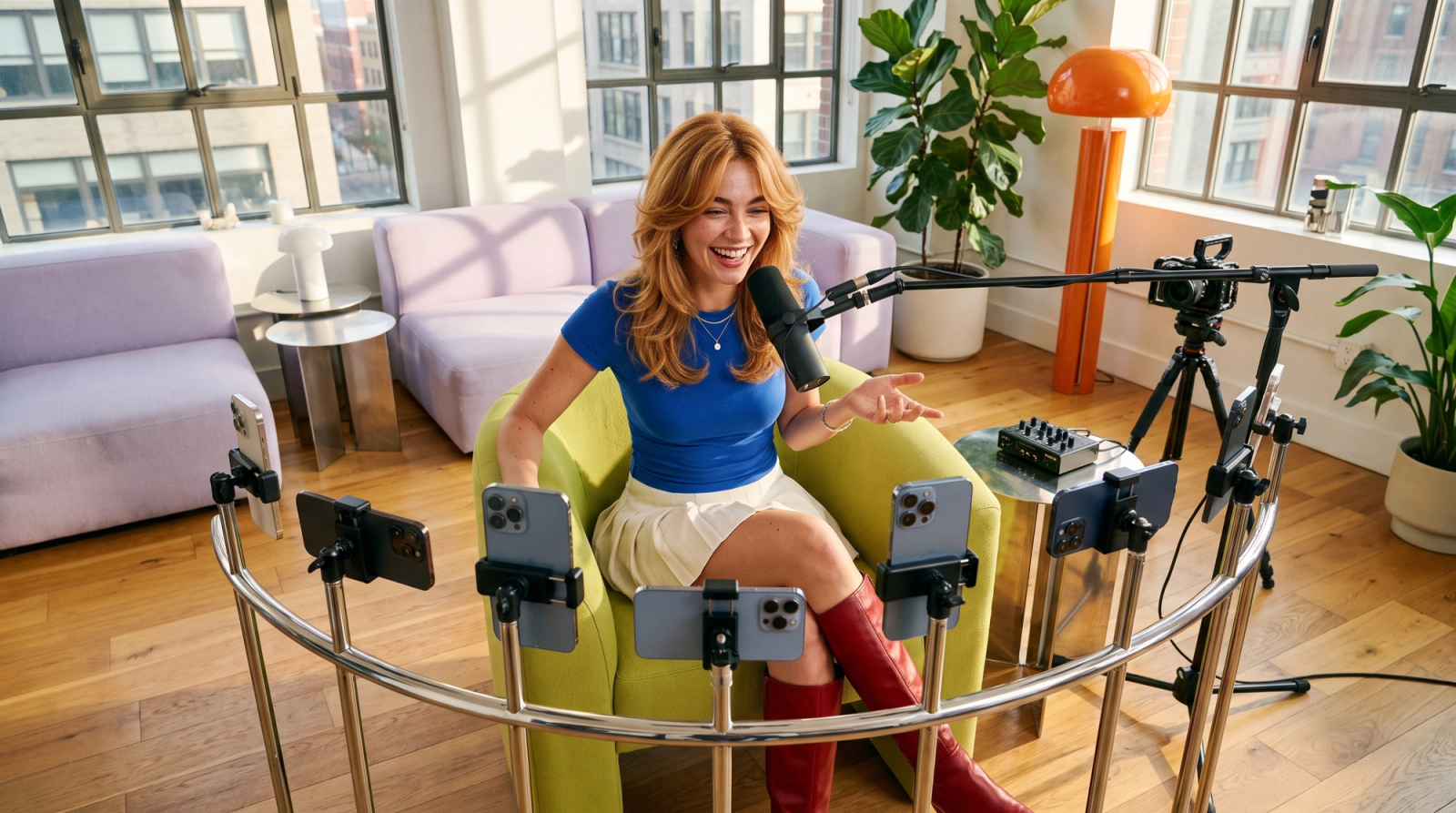
From there, instead of rebuilding a project to try a new angle, you can generate a handful of video variations off the same core idea: a different hook, a different CTA, a different platform cut, or a version resized for another channel, without starting from zero each time.
Long-form content can also get pulled apart into clips and highlights, so one sit-down video turns into a week’s worth of Shorts without a second shoot.
The automated draft won’t be perfect on the first pass. There’s still room to trim clips, swap B-roll, adjust timing, or restyle captions on the timeline before anything gets exported. But that’s the whole point of a video editor for YouTube built around variations, rather than stitching everything together by hand every time: the repetitive parts get handled automatically, and it’s that kind of workflow that separates a decent app from the best video editor for YouTube if you’re publishing more than once a week.
YouTube Video Editor Questions People Actually Ask
What’s the best video editor for YouTube?
Depends on the workflow. A phone app is fine for the occasional quick edit, but anyone producing long-form videos, repurposing them into Shorts, and testing video variations across a channel, or several, needs a YouTube video editor built for that whole path.
What video editor do YouTubers use?
It really varies by channel size and workflow. Plenty of creators still cut things by hand in general timeline editors, especially for one-off edits. But channels publishing often, or turning one video into several, tend to move to a YouTube editor built around variations and repurposing, since it cuts out most of the manual rebuilding every time they edit a YouTube video.
Does YouTube have a video editor?
YouTube Studio has a basic built-in editor for trims, blurring, and adding music, but it’s limited. Fine for small fixes after upload, not built for scripting, generating footage, or producing more than one version of a video. A dedicated video editor for YouTube covers that gap instead.
How do you turn a script into a finished video?
Paste it into a script-to-video tool. It splits the script into scenes, pairs each one with footage or generated visuals, adds a voiceover, and drops in captions. From there, you fine-tune the timing and pacing yourself. For a full walkthrough, see our guide on how to turn a script into a video.
Can you turn a long YouTube video into YouTube Shorts?
Yes. Pull out the strongest individual moments, the lines, reactions, or clips that hold up without the surrounding context, and each one becomes its own short vertical video.
Why do video variations matter?
Because testing a different hook, thumbnail, or CTA on the same footage tells you what’s actually working, instead of guessing after a single upload. If you’re already producing more than a couple of videos a week, or splitting time between long-form and Shorts, an all-in-one video creation platform like Videfy can take a script through storyboard, footage, voiceover, and captions in one workspace, then spin off the variations you actually need. And if TikTok is next on your list, our TikTok video editor guide walks through what’s different there.
If you’re already producing more than a couple of videos a week, or splitting time between long-form and Shorts, Videfy can take a script through storyboard, footage, voiceover, and captions in one workspace, then spin off the variations you actually need. And if TikTok is next on your list, our TikTok video editor guide walks through what’s different there.