


Video Storyboard Guide:How to Storyboard a Video
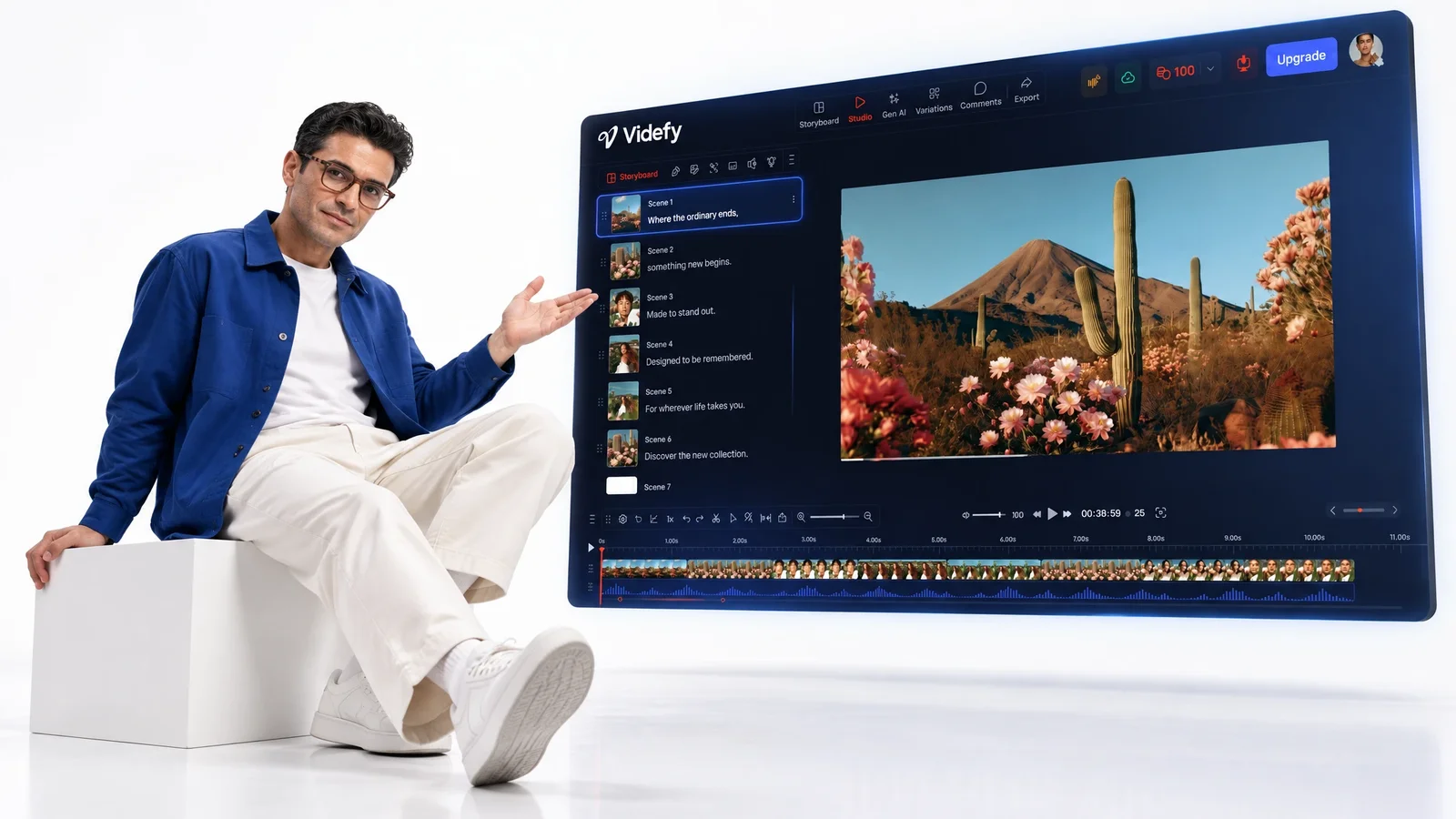
A video storyboard lays out your video one scene at a time, so you can spot problems before anything gets made. In Videfy, the storyboard is built from your script and shows what every scene needs, and it stays attached to the project when you move into production.

From Idea to Finished Video
The idea becomes a script, and the script becomes a storyboard. That storyboard then guides the visuals, the voiceover, and the edit, all the way through to export. Each stage reads from the scene list you set up.
What You Can Do With Videfy
Lay Out the Video Scene by Scene
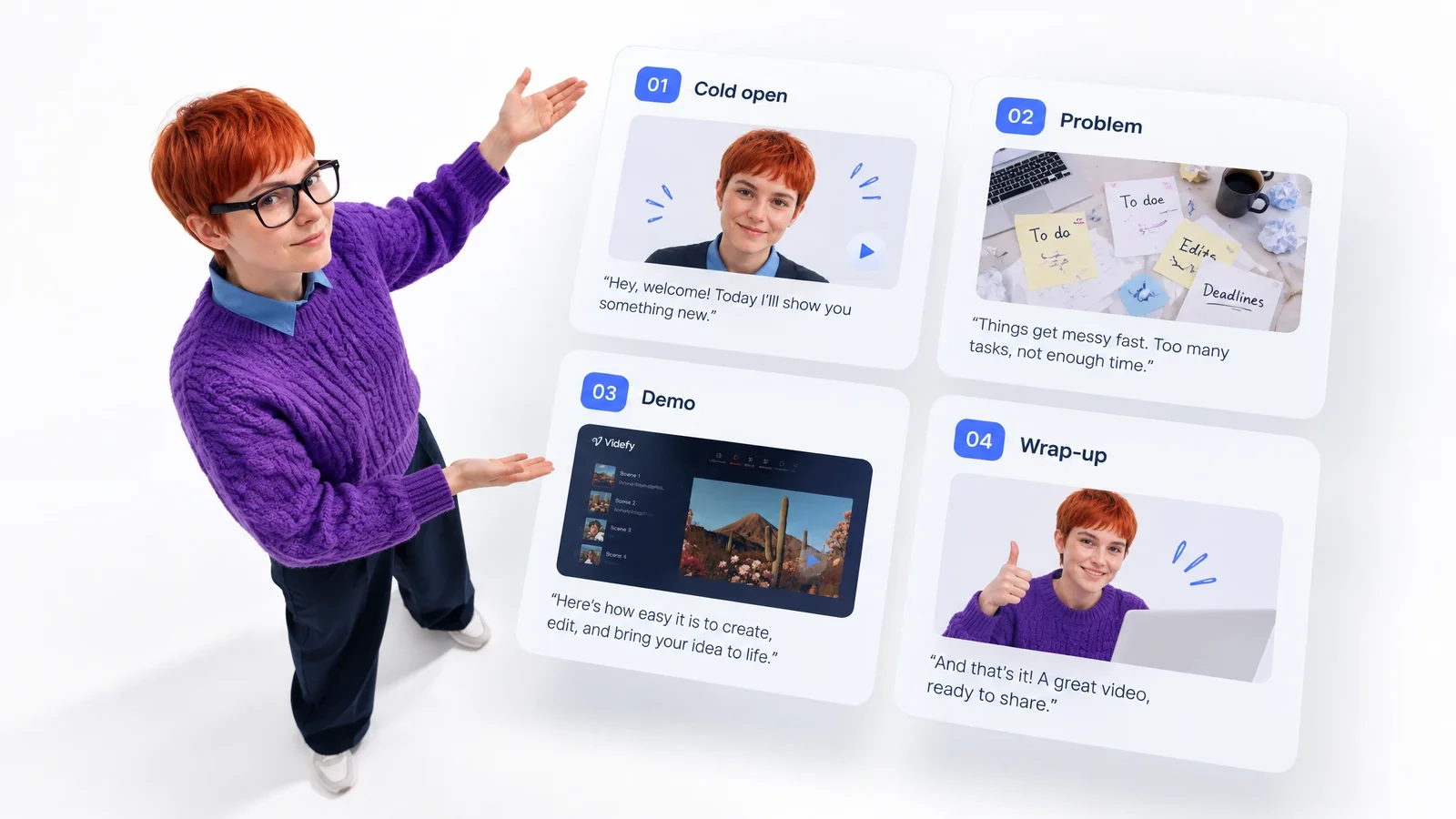
Paste your script, or ask Lyra, Videfy’s AI creative director, to draft one from a short prompt, then split it into scenes. Note a short label for each scene so it’s easy to talk about: “cold open,” “problem,” “demo,” “wrap-up.” Reorder scenes until the flow feels right. It’s much easier to move a scene here than to recut it on the timeline later.
Know What Each Shot Requires
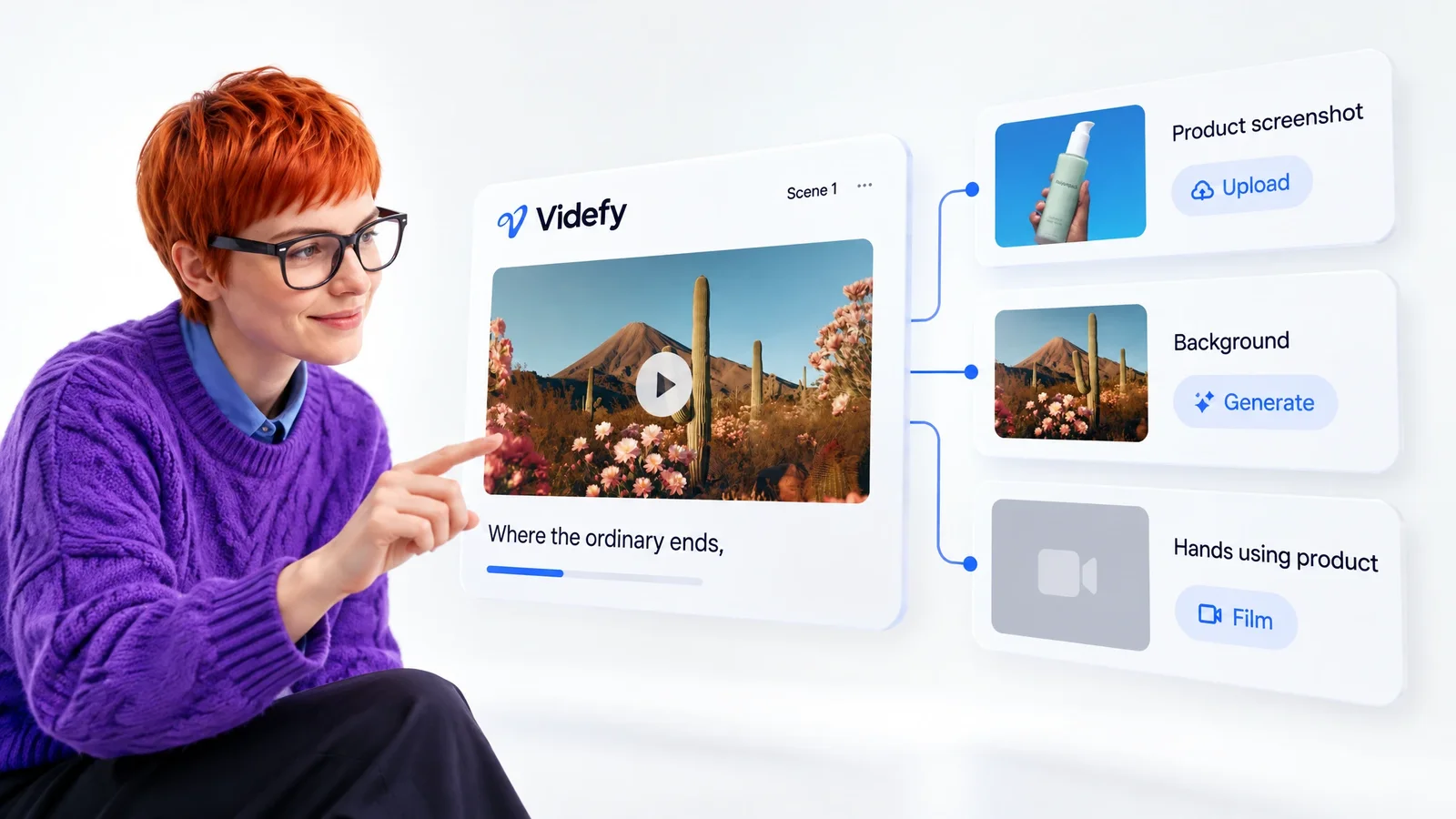
For each scene, the storyboard shows which footage, images, characters, or other assets it requires. That turns into a working list: generate the visuals you can describe, upload the footage you already have, and mark anything you still need to film. Missing shots show up while they're still easy to plan for, not halfway through the edit.
Review the Storyboard Together
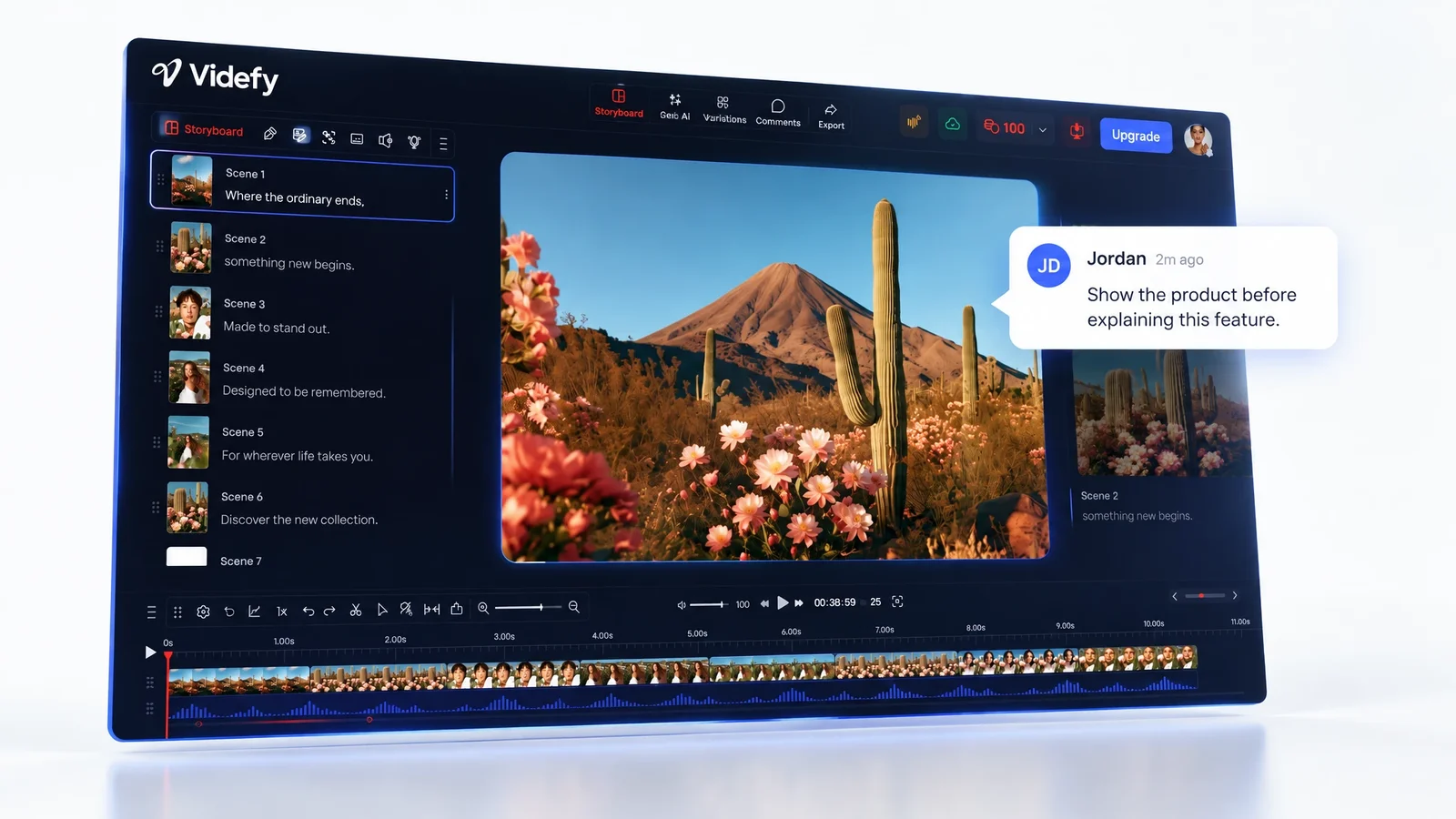
On Videfy’s Team plans, teammates work from the same storyboard in a shared workspace and leave feedback while it’s still cheap to change. Agreeing on the scene order and the shot list now saves arguments later, when changes mean regenerated voiceover lines and re-rendered clips. Approval workflows keep the sign-off with the project, so nobody has to dig through email threads to find who asked for what.
The Storyboard in the Video Creation Workflow
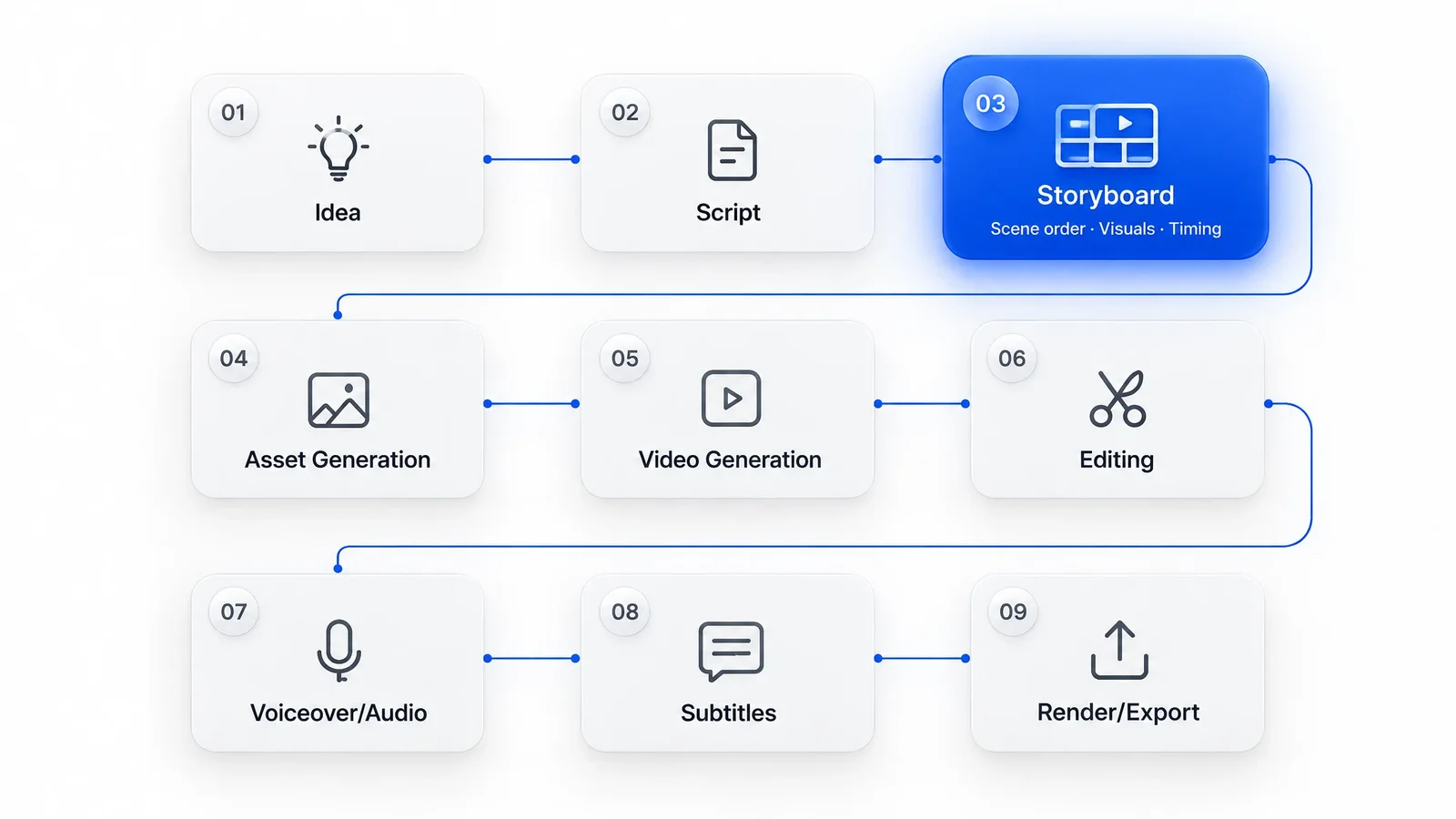
Idea → Script → Storyboard → Asset Generation → Video Generation → Editing → Voiceover/Audio → Subtitles → Render/Export
- Idea

- Script
- Storyboard
- Asset Generation
- Video Generation
- Editing
- Voiceover/Audio
- Subtitles
- Render/Export
The storyboard is the third stage, right after the script. It's the point where words become a plan for pictures. It decides what viewers see, in what order, and for roughly how long.
Everything after it depends on that plan. Asset generation follows the scene notes, video generation and editing follow the scene order, and the voiceover and subtitles line up with the scenes they belong to. When the storyboard is vague, those later stages fill the gaps with guesses, and guesses are slow to fix.
In Videfy, the storyboard stays inside the video creation workflow instead of living in a slide deck, so the scene list you approved is the one production works from.
Four Steps to a Working Storyboard
You don't need to draw anything. A good storyboard is more about decisions than sketches.
Start From the Script
Split the script at every change of shot, location, or idea. Each split becomes a scene. Short scenes are much easier to rearrange than long ones.
Describe What's on Screen
For each scene, write one or two lines about what viewers see: the shot, the setting, any text on screen. This is what you'll generate or film later.

Add Rough Timing
Estimate roughly how long each scene will run. If the total runs far over your target length, cut or combine scenes now, while it costs nothing.
Share and Lock It
Get feedback from anyone involved, settle the scene order, and then move into generation and editing. On Team plans, approval workflows record the sign-off. Changes are still possible after that, just slower.
Change the Storyboard as Often as You Need
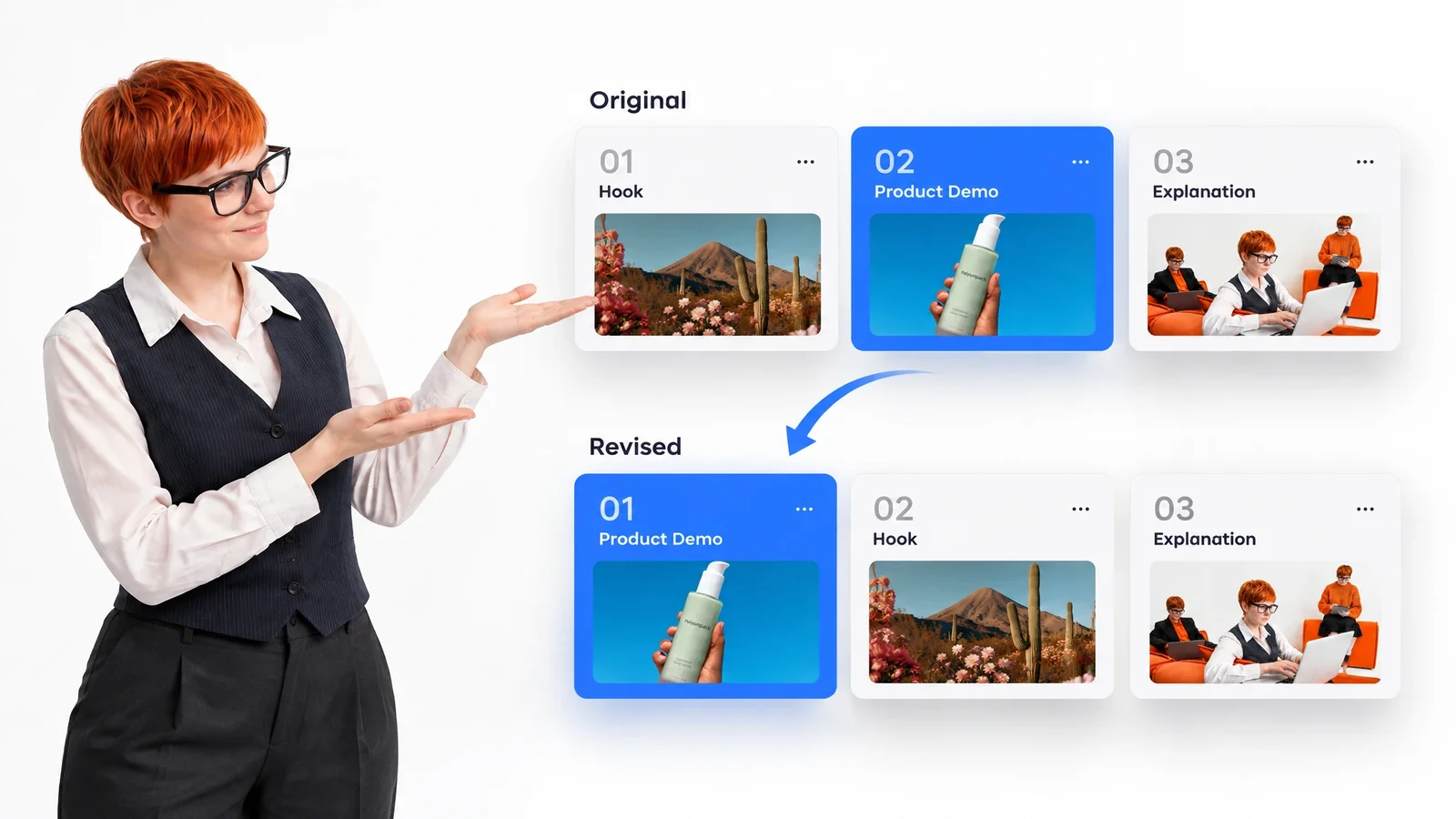
A first storyboard is rarely the final one. You'll move a scene earlier to grab attention, cut one that repeats a point, or split a long scene in two when it tries to do too much. In Videfy, that kind of rearranging happens before you've spent time on visuals or voiceover.
Once production starts, you still have plenty of room to adjust. Swap a generated image for your own footage, change a background, or ask Lyra to make a change in plain language. On the timeline, fine-tune how long each scene holds and where text appears. The storyboard guides the work, but you can overrule it whenever the finished video needs something different.
Video Storyboards forDifferent Kinds of Projects
Explainer Video Storyboards
Explainers depend on visuals that match each idea as it's spoken. Storyboard one concept per scene and note the visual metaphor or diagram for each. If a scene has no clear visual, that's usually a sign the script needs simplifying at that point.
Social Media Ads
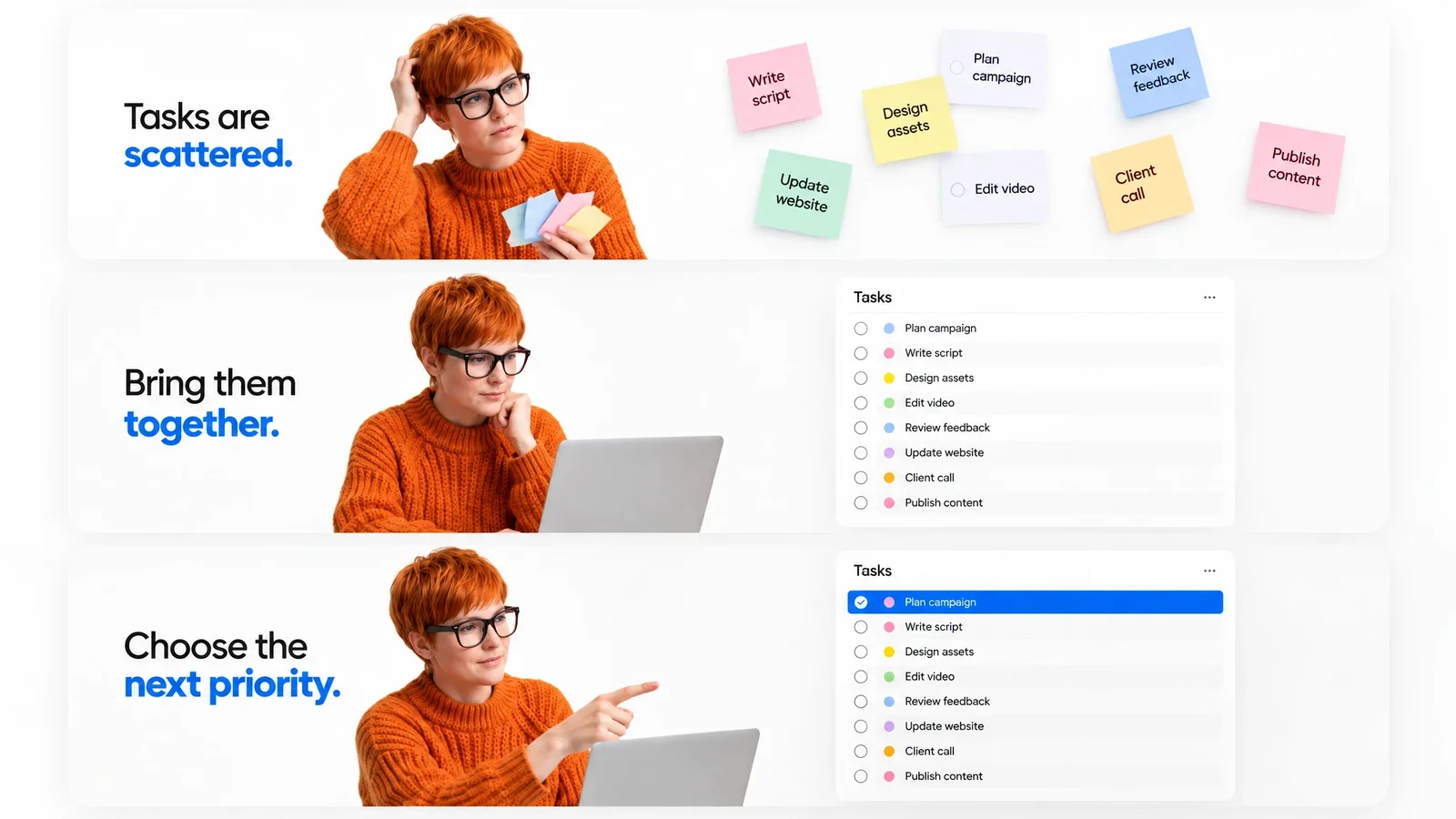
Short ads leave no room for filler at all. A storyboard for a 15-second ad might be four scenes: hook, problem, product, call to action. Once it’s approved, plan a few alternative openings, and on Creator or Pro, turn them into variants for external A/B testing.

Product Demo Storyboards
Plan which features appear in which order, and mark where you'll use a screen recording versus a generated scene. Demos tend to run long, so the storyboard is where you decide what gets cut. Twelve tight scenes are easier to work with than thirty loose ones.

Training Videos
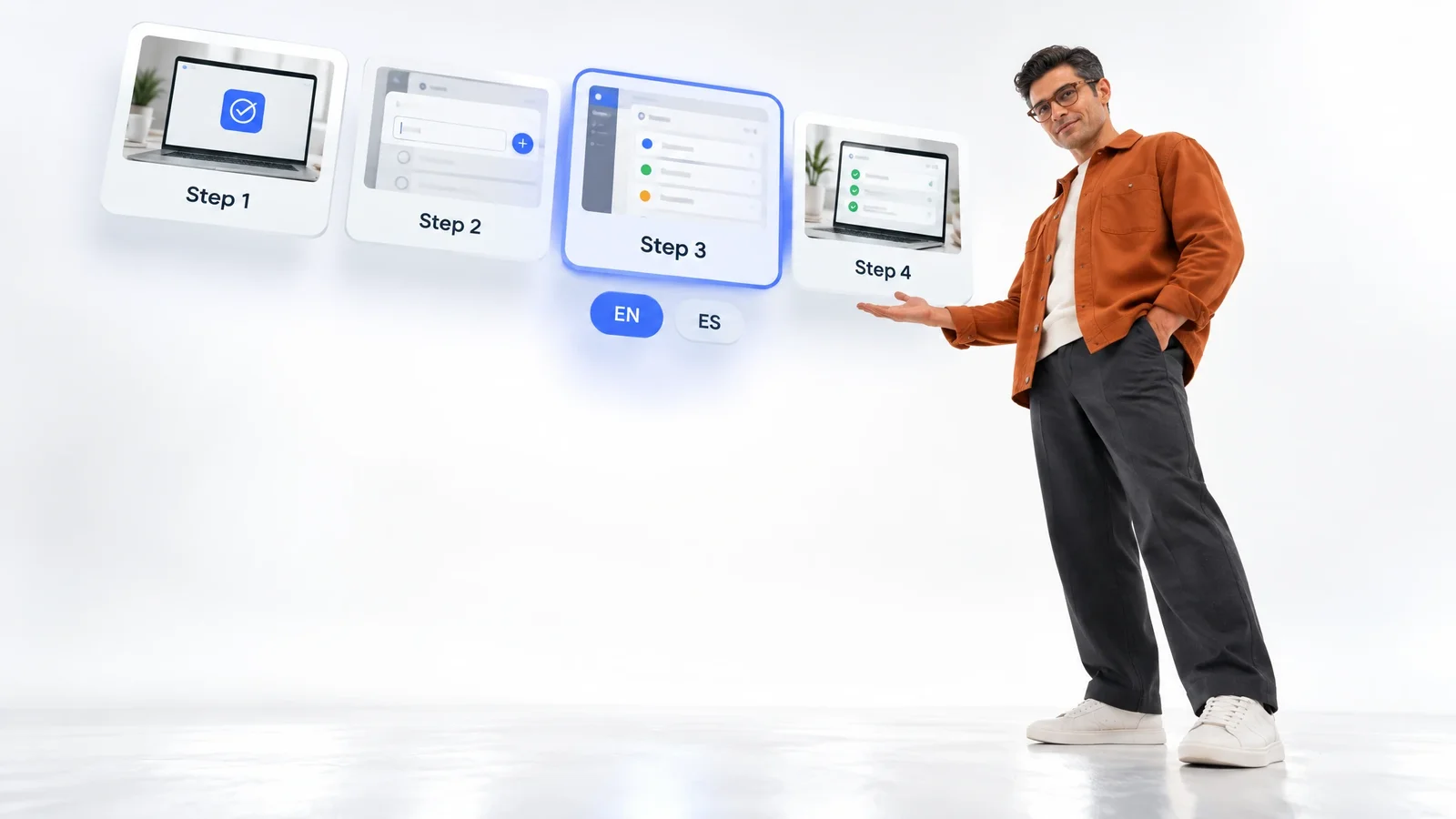
Training content changes often, so storyboard it in small scenes: one step per scene, with a clear label. When a process changes, you update the affected scene instead of reworking the whole video. Translated voiceover and captions can follow for teams in other regions.
No More Storyboards Stuck in Slide Decks
A lot of storyboards live in slides, whiteboards, or a shared doc full of pasted screenshots. They work fine for the planning meeting. Then production starts in a different tool, and the storyboard slowly drifts out of date as the video changes.
Videfy is an all-in-one video production workspace, so the storyboard sits in the same project as the visuals, voiceover, captions, and exports. When someone asks why a scene exists, you can check the storyboard instead of hunting for an old slide.
It helps again months later. Come back to make an updated version for a new product release, and the original scene plan is right where you left it.
Why Creators Storyboard in Videfy
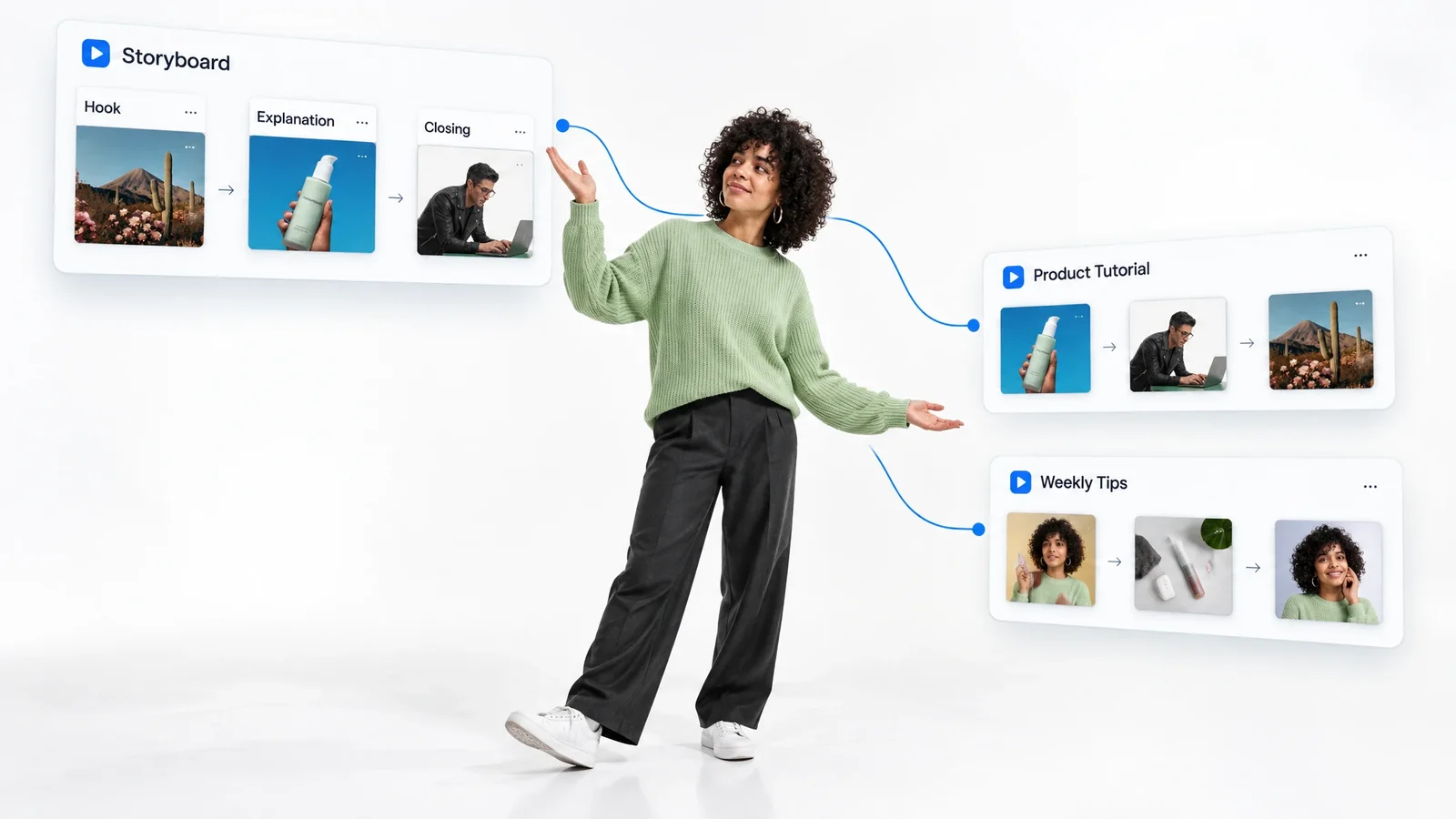
Videfy is a smart video creation platform built around one connected workflow, and the storyboard is the hinge in the middle of it. The script feeds into it, and generation, editing, voiceover, and subtitles all come out of it.
It’s built for video creation that scales. A storyboard that works for one video can become the starting point for the next: open the past project, swap in the new script, and keep the scenes that still fit. For recurring work, Video Automation lets you build repeatable workflows, and on Creator and Pro, a finished video can become variants for different audiences, platforms, or hooks without re-planning from scratch.
Storyboarding is included on every plan, including the free one, which comes with 25 credits and 720p watermarked exports.
Frequently asked questions
FAQ
A video storyboard is a scene-by-scene plan for a video. It shows what happens in each scene, what viewers see, and roughly how long each part runs, before anything is filmed, generated, or edited. Storyboards can be sketches, photos, or written descriptions; what matters is the order and the decisions behind it.
Start from your script and split it wherever the shot, location, or idea changes. For each scene, write a line or two about what viewers see and estimate how long it runs. Then share it for feedback and adjust the order before production. In Videfy, you start by pasting the script into a new project.
Yes. On Videfy’s Team plans, teammates share a workspace and can leave feedback and approve the storyboard. Reviewing at this stage is the cheapest time to change direction, since no visuals, voiceover, or edits exist yet. Once everyone agrees, the whole team moves straight into production.
The script is what's said. The storyboard is what's shown, scene by scene, and in what order. Most videos need both: write the script first, then storyboard it so each spoken section has a matching visual plan. In Videfy, the storyboard is built directly from your script.
It depends on length and pace. A 30-second ad might have four to six scenes, while a 10-minute tutorial could have 30 or more. A useful rule is one scene per shot, idea, or step. If a scene tries to show two things, split it.
Yes. Invite team members to the Videfy project and share feedback through comments. Reviewing at the storyboard stage is the cheapest time to change direction, since no visuals, voiceover, or edits exist yet. Once everyone agrees, the whole team moves straight into production.
You move into production. Generate or upload the visuals each scene needs, create a voiceover from the script, add captions, and edit everything on the timeline. Because the storyboard stays in the project, you can check it at any point to see what a scene was meant to do.

Storyboard Your Next Video on aSmart Video Creation Platform
Split your script into scenes, note what each one needs, and get your team’s feedback before production starts. Then build the visuals and voiceover from the plan you all agreed on. Videfy’s free plan includes storyboarding, so it’s a simple place to begin.