


AI Video Generation WithFull Editing Control
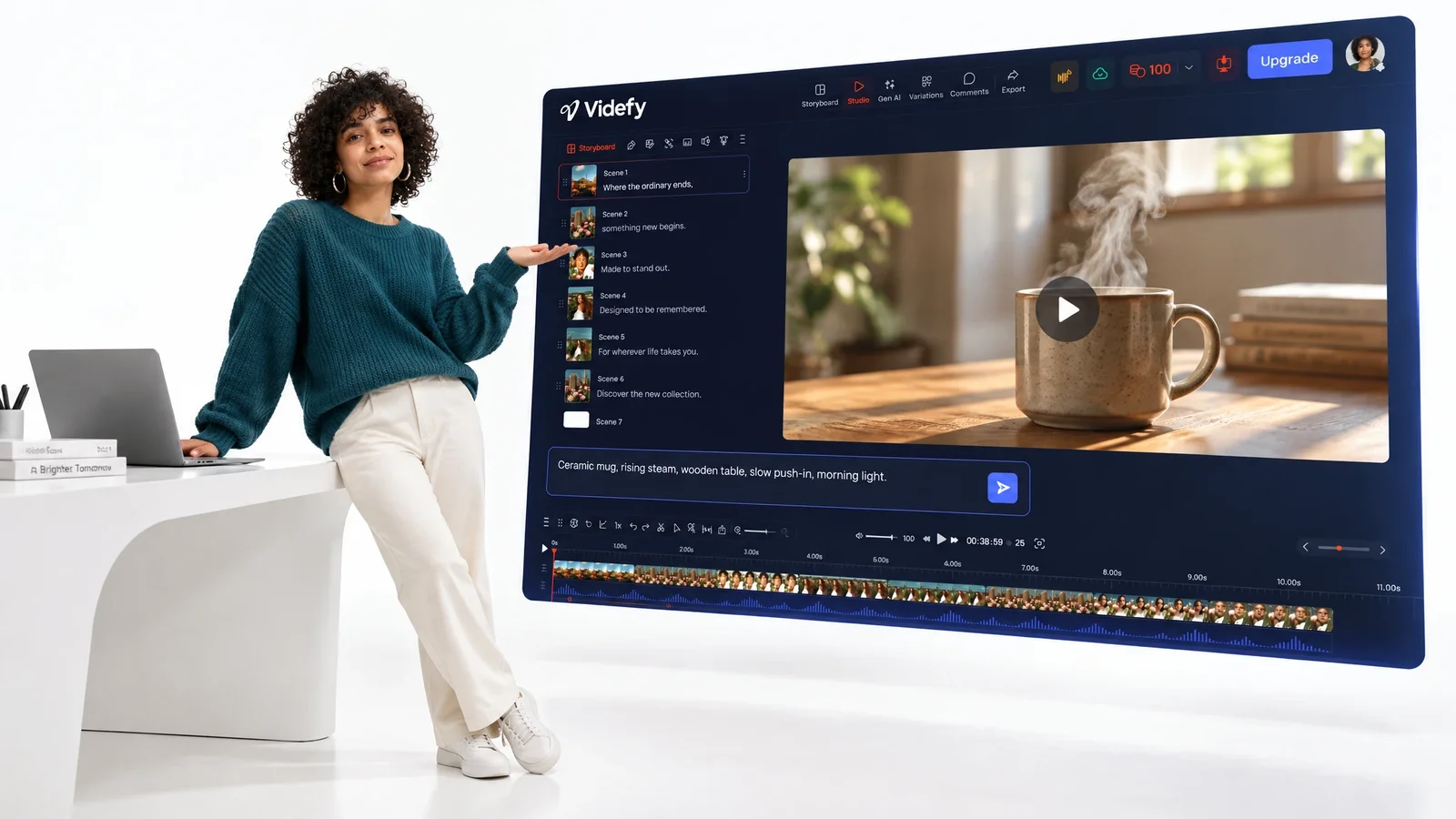
AI video generation turns a written description into moving footage. In Videfy, you generate clips and scenes with leading models like Seedance 2.0, then shape them on a real timeline with voiceover, captions, and edits, so the result is a finished video rather than a pile of clips.

From Idea to Finished Video
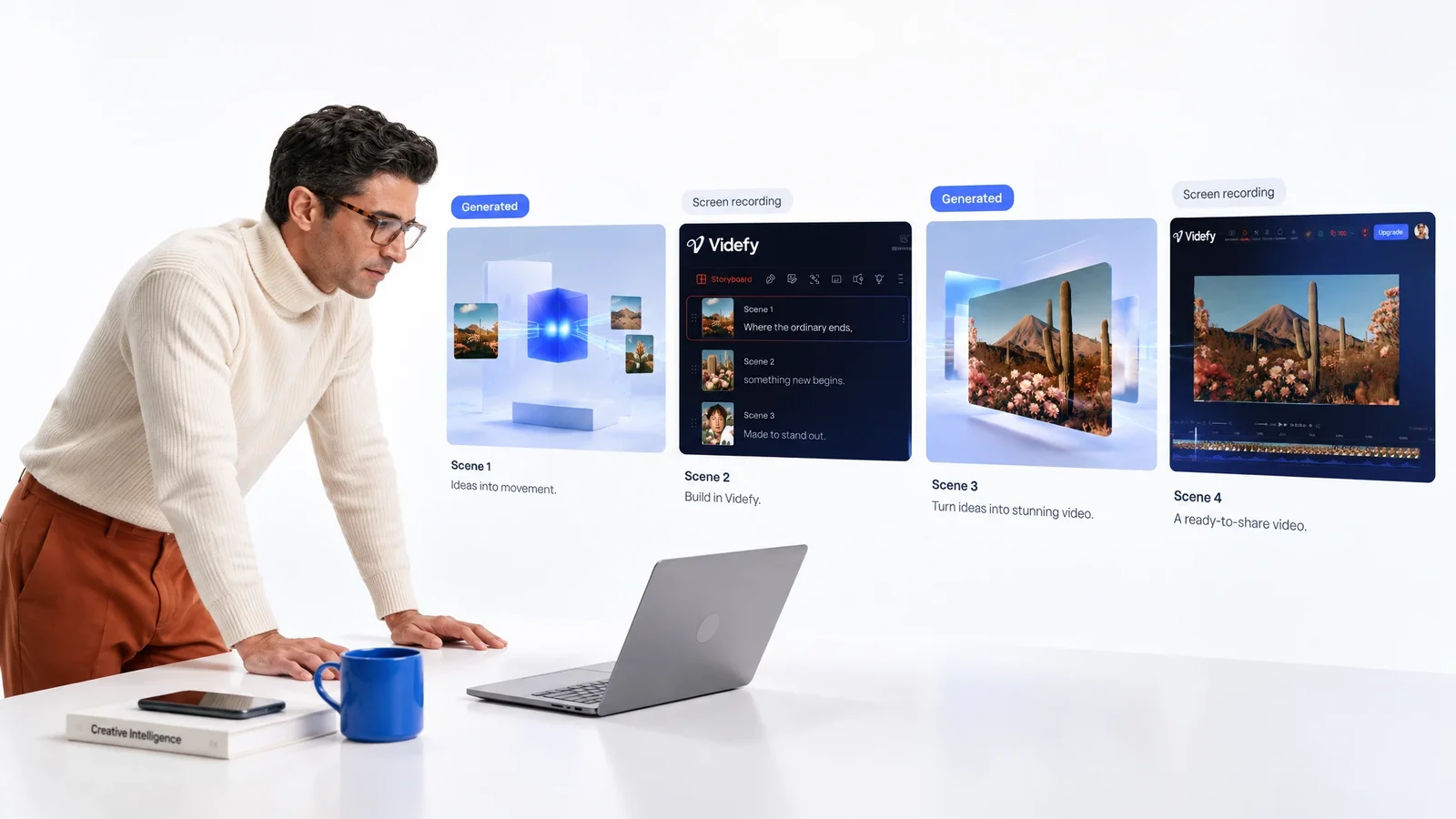
Start with an idea or a script, and the storyboard breaks it into scenes. Generate the clips each scene needs, add voice and captions, and edit until the pieces read as one video. Then export the versions you need.
What You Can Do With Videfy
Generate Clips From a Description
Describe a shot the way you’d brief a camera operator: subject, action, setting, camera movement, and light. Videfy generates a short clip from it using leading video models. On Pro, you get the full list of generation models and can bring your own API access, which helps when one model suits a particular style better.
Build Scenes, Not Just Clips
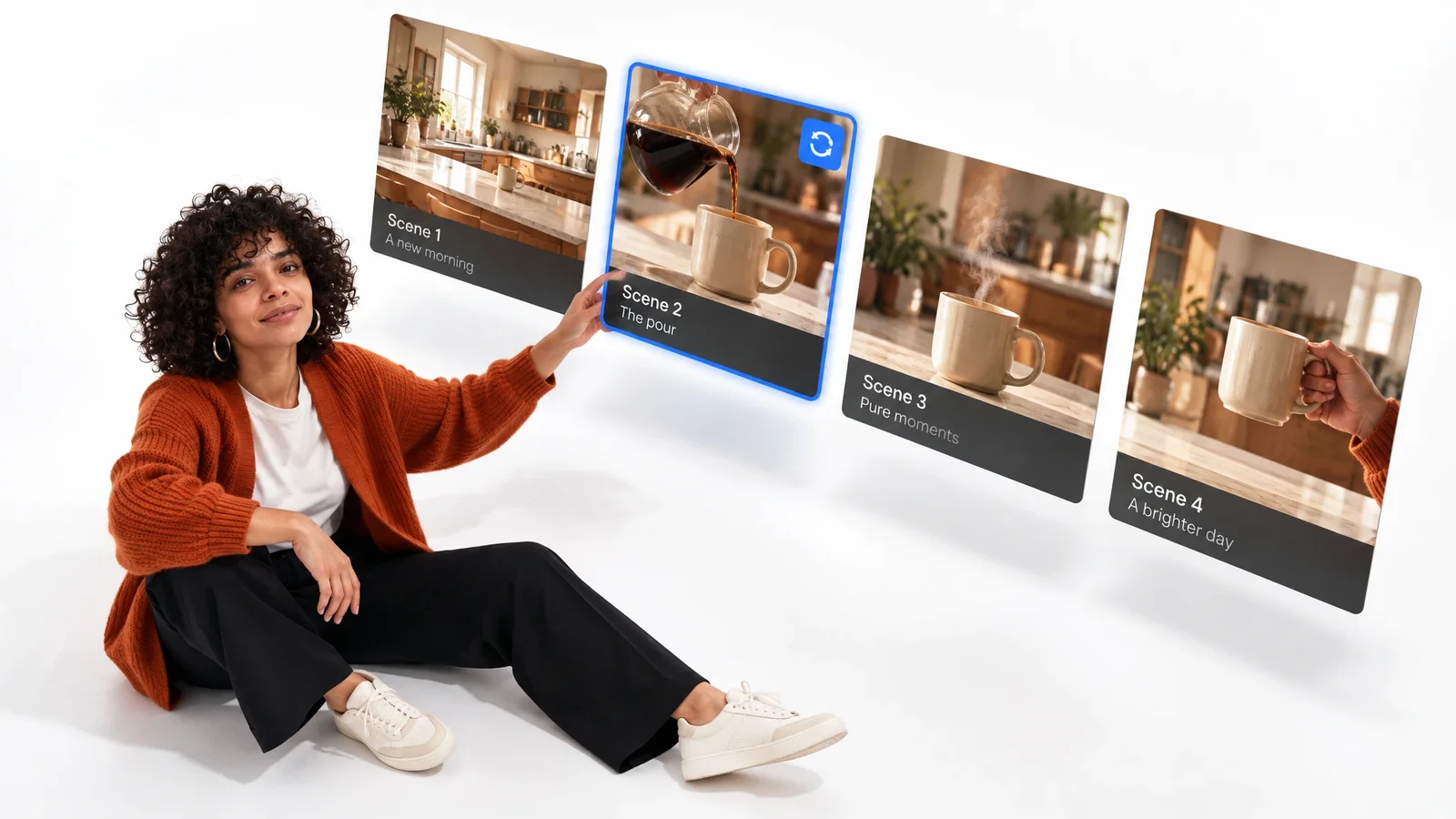
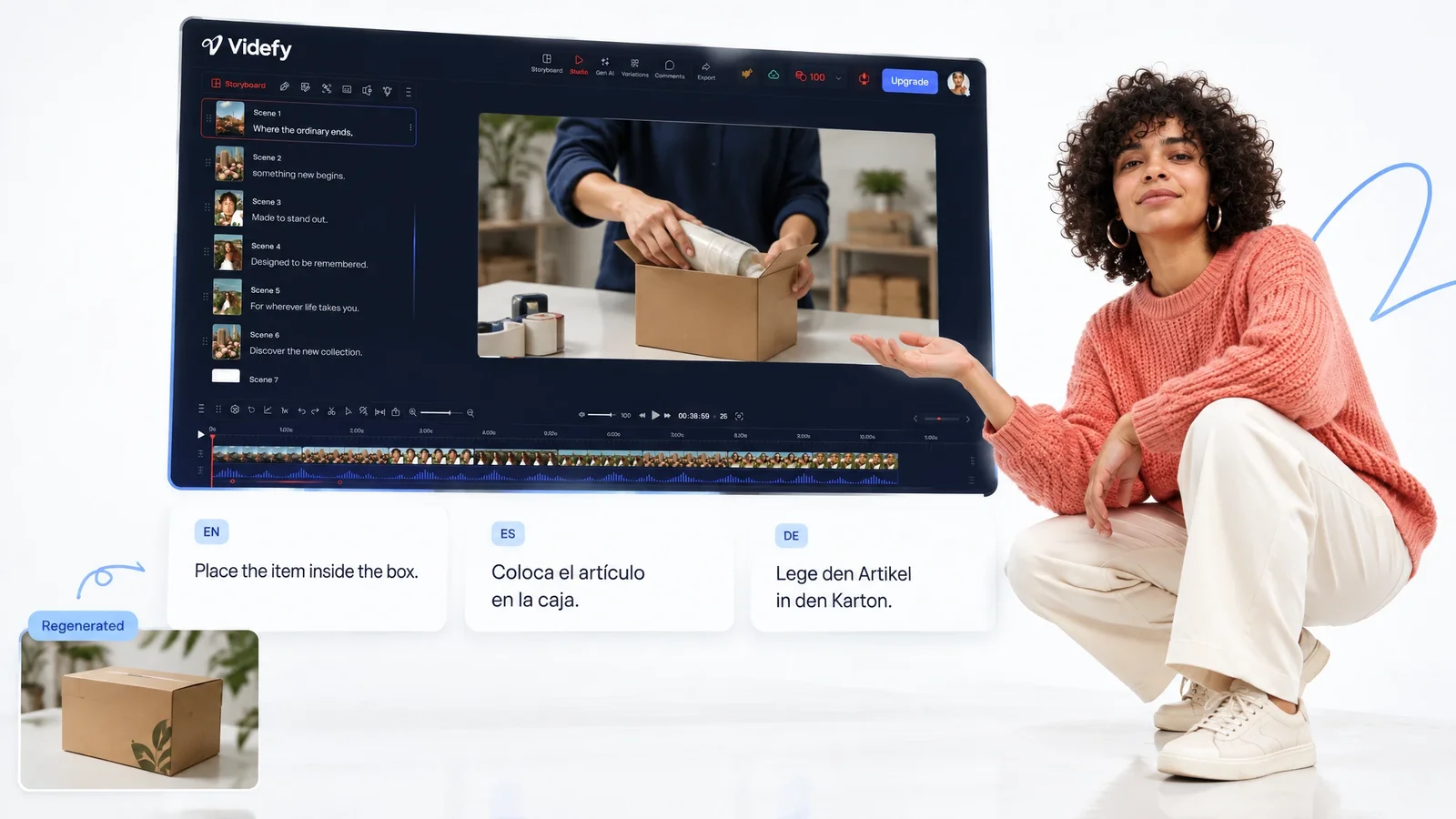
A single generated clip is easy. A video made of twenty that feel like they belong together is harder. Videfy works scene by scene from your storyboard, so each clip is generated for a specific moment, with the same characters, settings, and style notes carried in your prompts. Regenerate a single scene without touching the rest.
Finish the Video in the Same Project
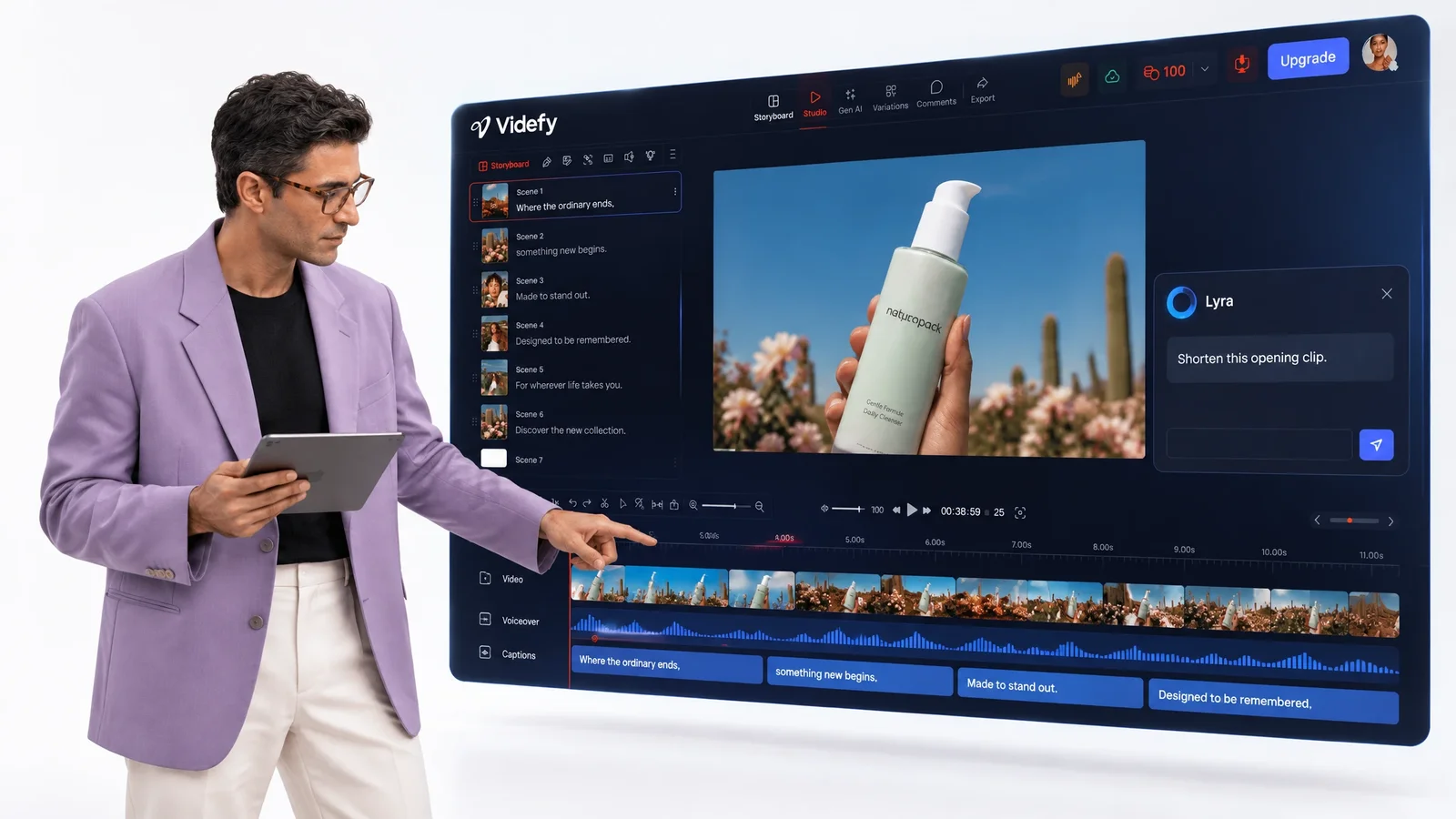
Generated clips land where the edit happens. Trim and arrange them on the timeline, add transitions and text, and use keyframes for movement. Add a natural-sounding voiceover and timed captions, then make quick changes by asking Lyra in plain language. Nothing gets downloaded and re-imported between steps, so versions stay easy to track.
AI Video Generation in the Video Creation Workflow
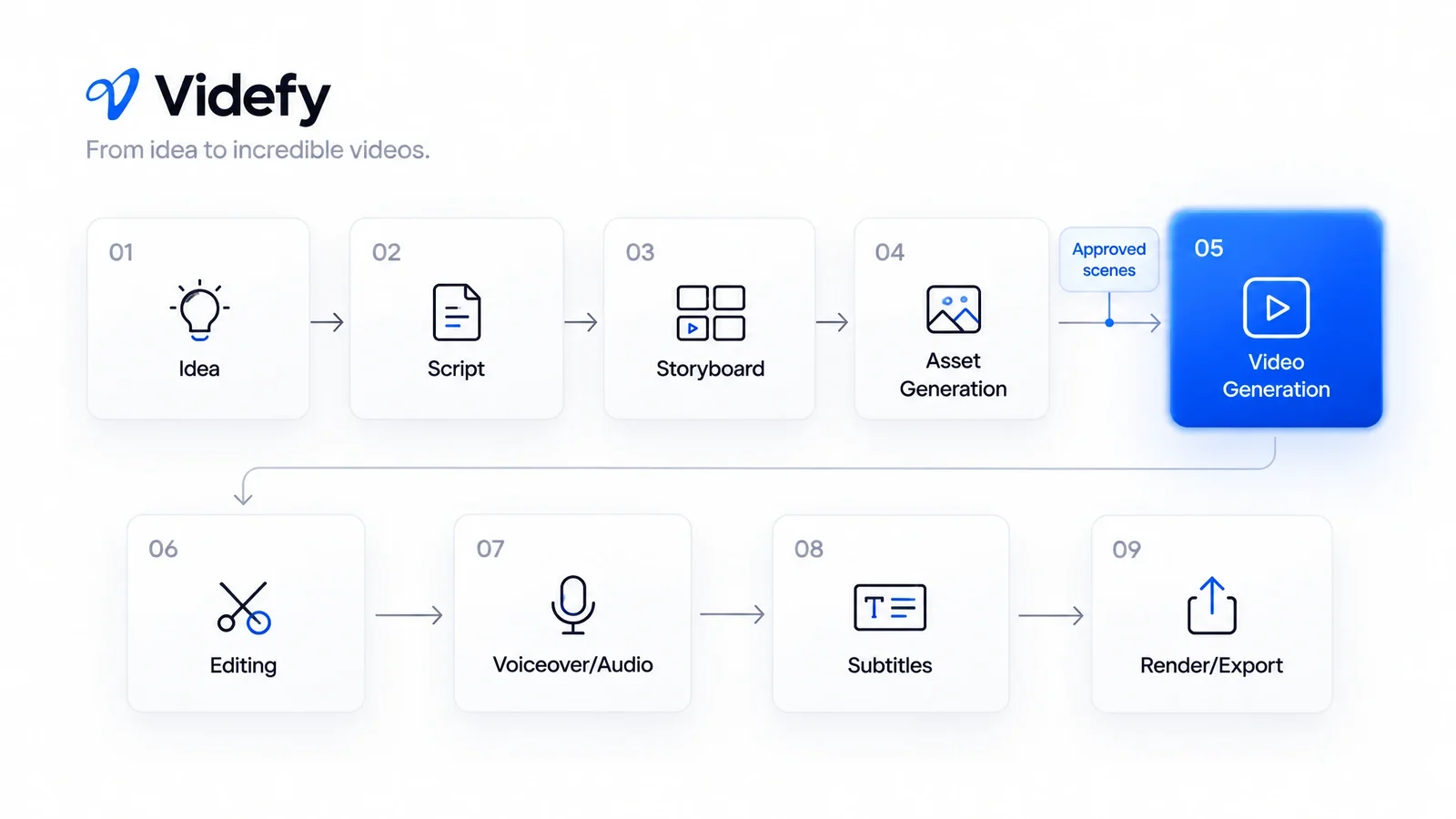
Idea → Script → Storyboard → Asset Generation → Video Generation → Editing → Voiceover/Audio → Subtitles → Render/Export
- Idea

- Script
- Storyboard
- Asset Generation
- Video Generation
- Editing
- Voiceover/Audio
- Subtitles
- Render/Export
Video generation is the fifth stage, after asset generation. By then, the script, the storyboard, and many of the images and characters already exist, so generation turns planned scenes into motion instead of guessing what the video should be.
The order also affects cost. One clip from a top video model can use a noticeable share of your monthly credits. On the Starter plan, for example, 350 credits work out to roughly a dozen Seedance 2.0 videos, so you want each generation tied to a scene you’ve already approved.
In Videfy, generation stays connected to the rest of the video creation workflow, so editing, voiceover, subtitles, and export pick up the clips right where they land.
How to Generate a Video With AI
Plan first, generate second. It saves credits and gives you a video that hangs together.
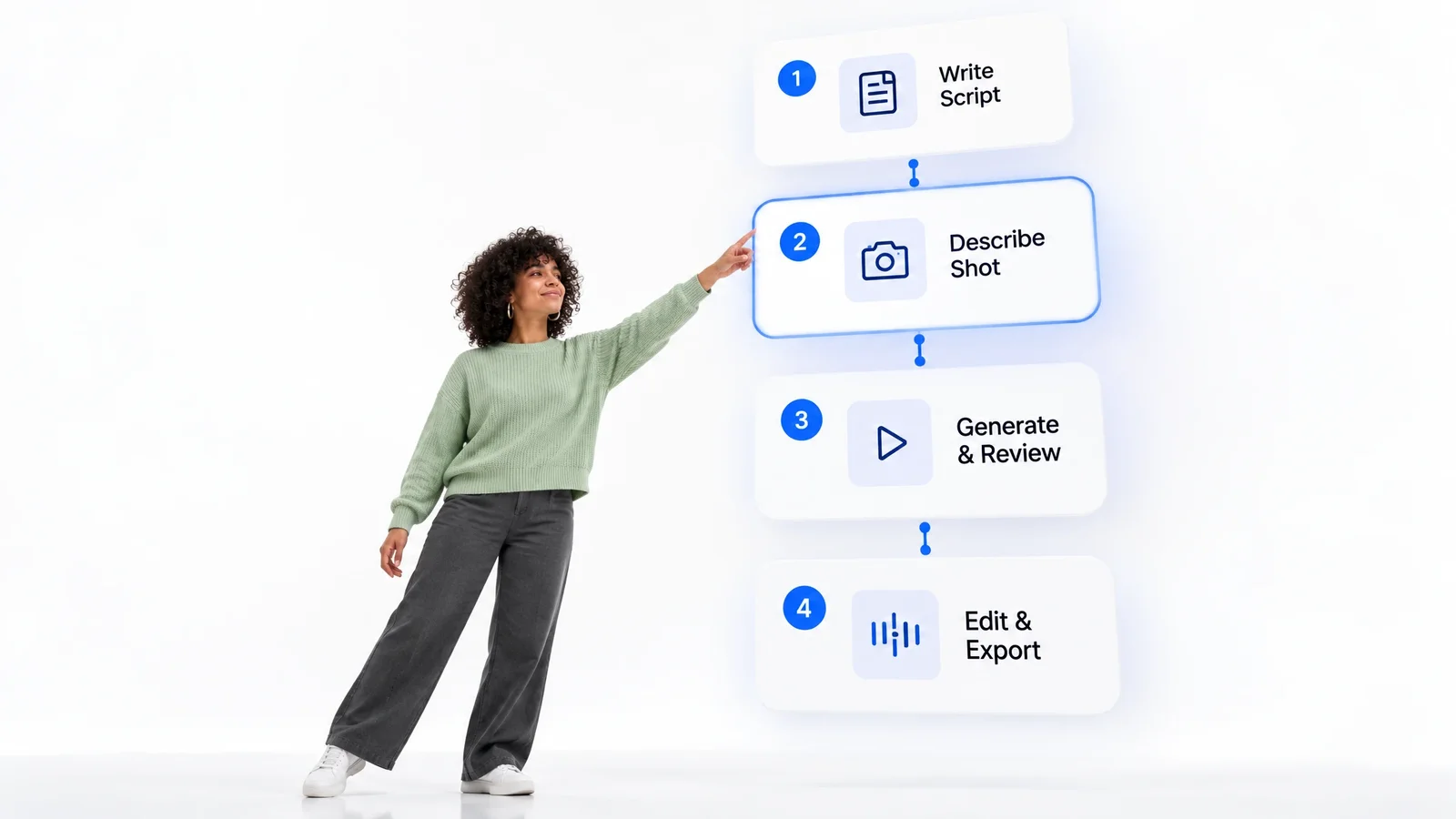
Write or Paste a Script
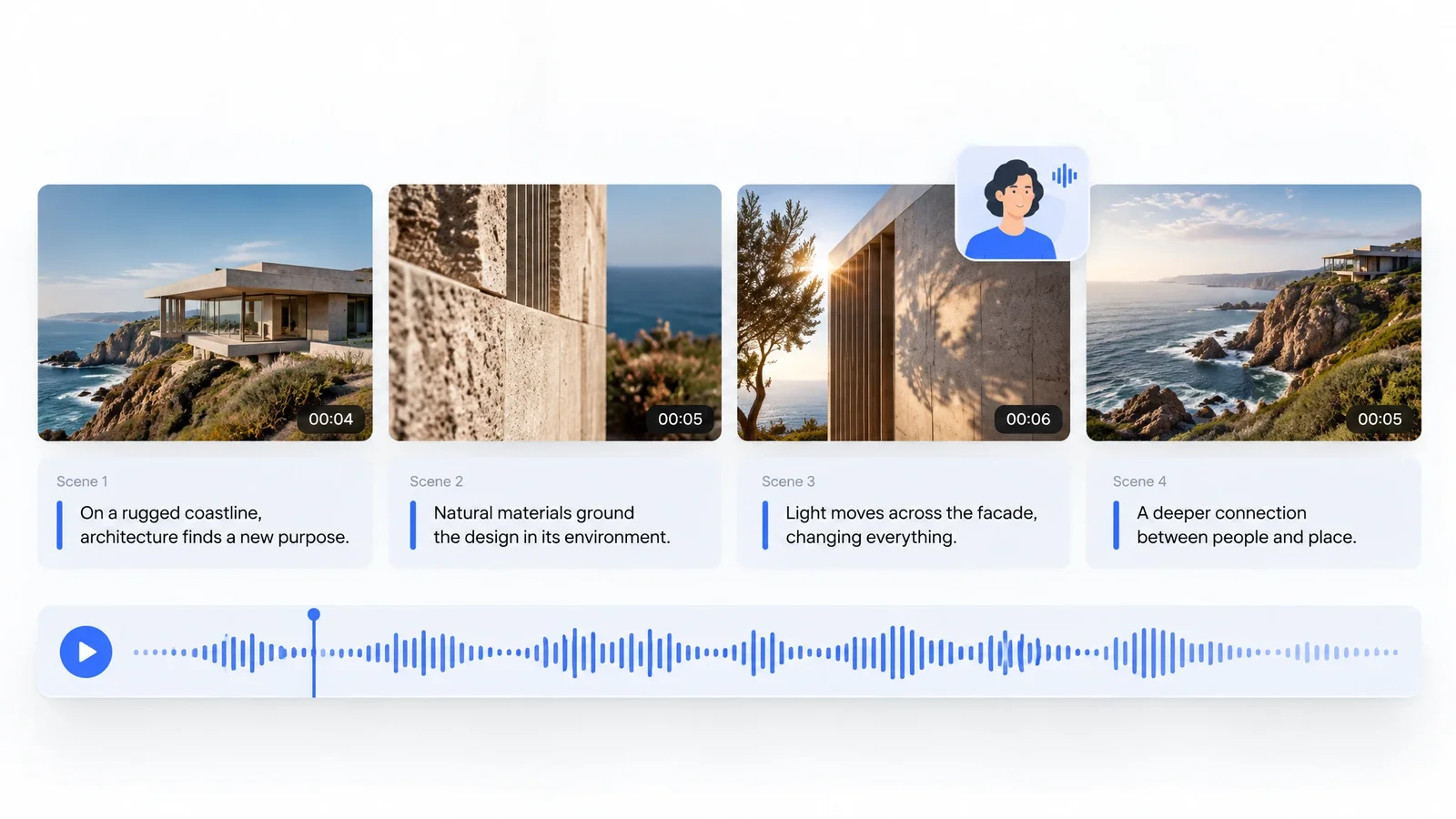
Start from a prompt and let Lyra draft the script, or paste one you’ve written. Videfy turns it into a storyboard with separate scenes you can reorder.
Describe Each Shot
For every scene, write a short prompt covering subject, action, setting, and camera movement. Upload images or footage for any scene that should use real material instead.
Generate and Review
Generate the clips, watch them in order, and regenerate only the scenes that miss. Fix small issues in the edit instead of spending more credits on full retries.
Edit, Voice, Export
Arrange the clips on the timeline, add voiceover and captions, and export in the format and resolution your channel needs. Free exports are 720p; paid plans go up to 4K.
Direct the AI Instead of Rolling the Dice
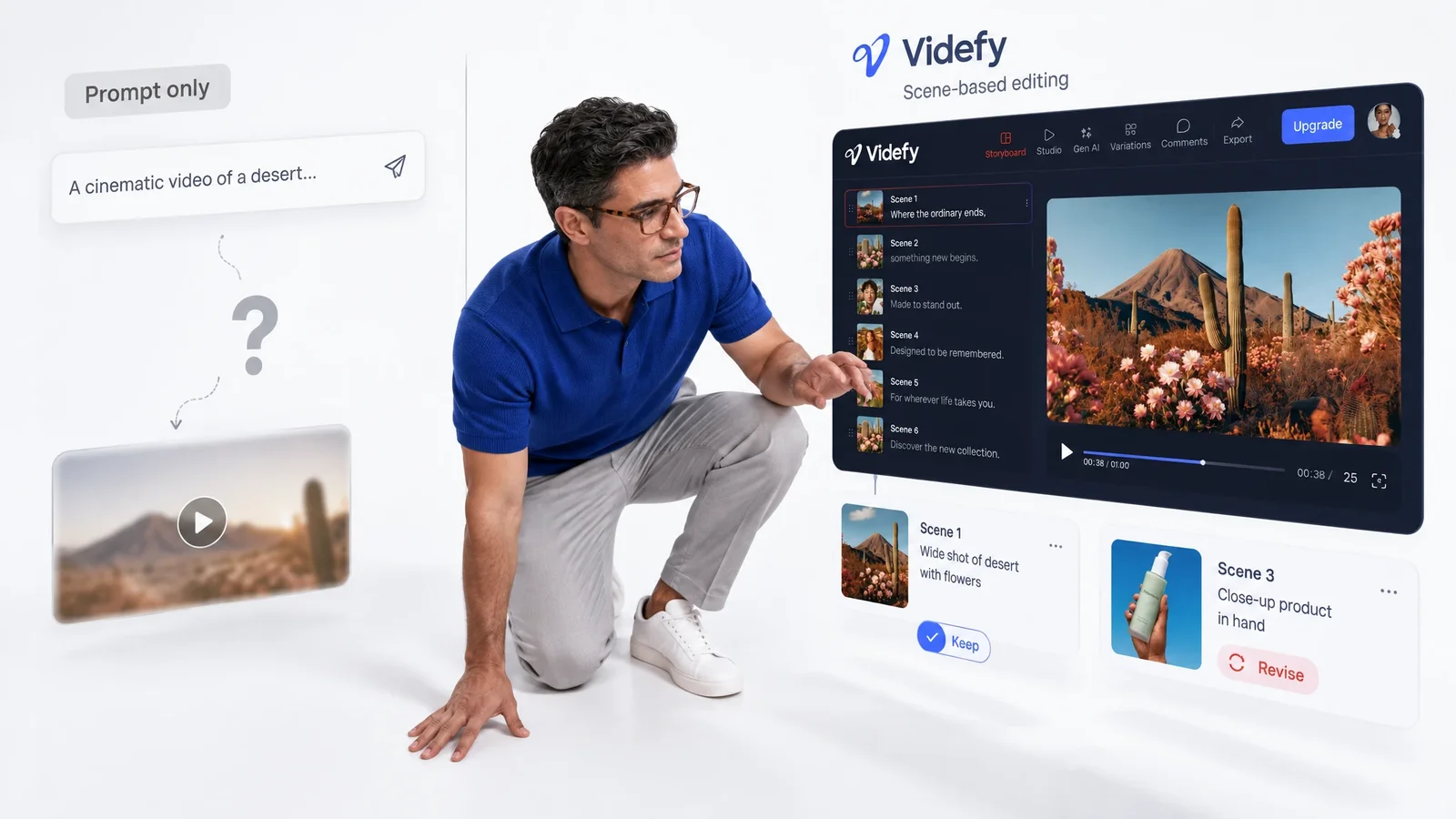
Pure prompt-only tools can feel like a slot machine: you type, you wait, and you hope. Videfy gives you more handles. You decide the scene order in the storyboard, write a prompt for each shot, and keep any clip that works while redoing the ones that don’t.
After generation, the edit is still yours. Trim a clip that runs long, cover a weak moment with your own footage, retime a transition, or change the mood of a scene by asking Lyra. The timeline and keyframes are there when you want more exact control. The models generate the footage, but what the video says, and whether it’s ready, is still your call.
AI Video Generation forDifferent Projects
AI Video for Social Ads
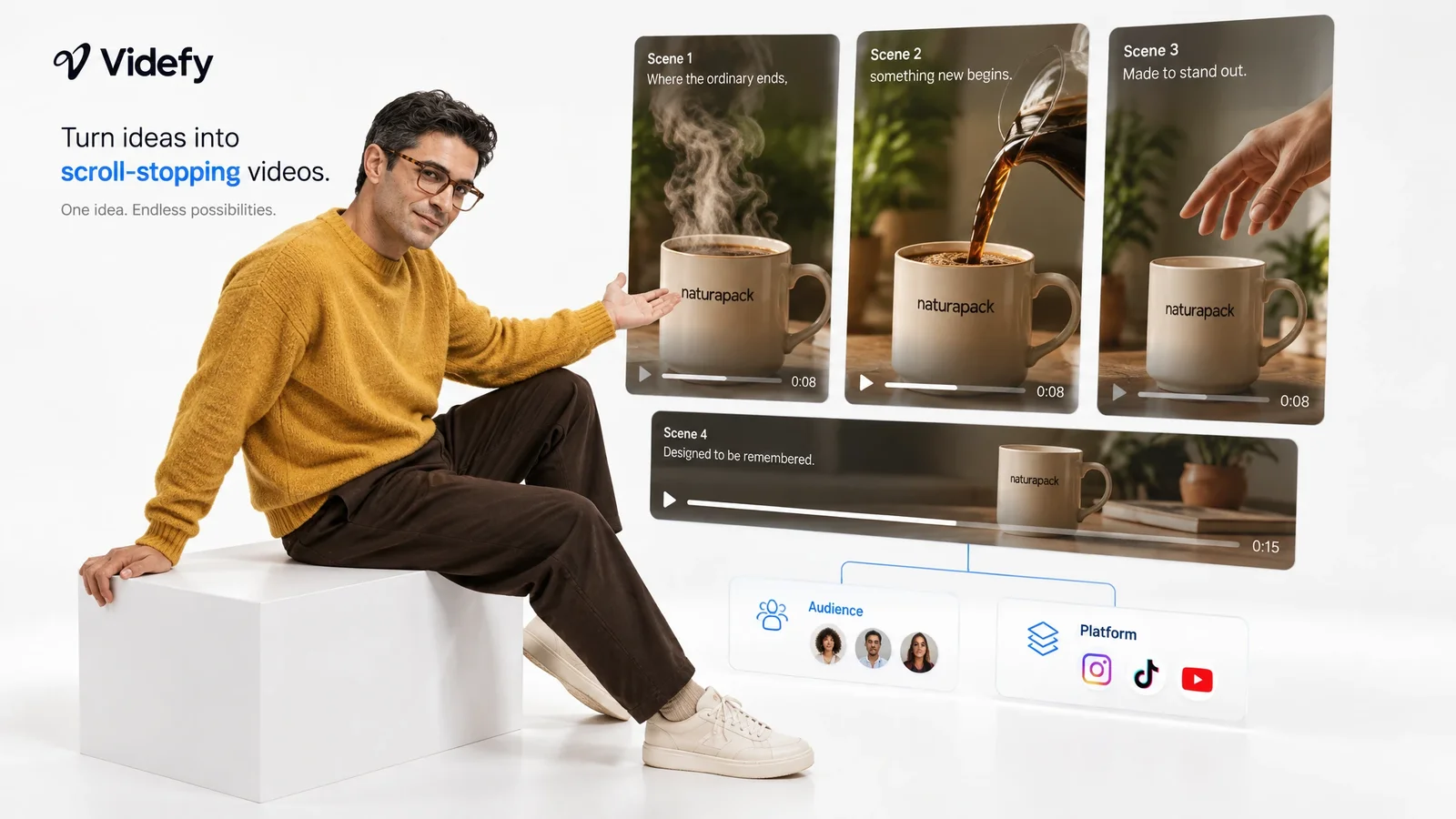
Generate a few versions of the opening scene to find a hook that stops the scroll, then build the rest of the ad around it. On Creator and Pro, multi-variants turn the finished ad into versions for different audiences and platforms, ready for external A/B testing.
AI Video for Product Explainers
Mix generated scenes with real product footage. Generated shots handle the abstract parts, like how data moves or what a problem feels like, while your own screen recordings show the actual product, so viewers get a clear story without a full shoot.
AI Video for Faceless Channels
Faceless YouTube and TikTok channels need visuals for every line of narration. Generate B-roll-style clips scene by scene, pair them with a voiceover from your script, and add an avatar presenter on Creator or Pro when a scene needs a person.
AI Video for Training and Localization
Generated scenes are easy to reuse across languages because they don’t depend on a presenter’s mouth movements. Translate the voiceover and captions, keep the visuals that still fit, and regenerate only the scenes with region-specific details, so one edit can serve every market.
Generated Clips That Arrive Ready to Edit
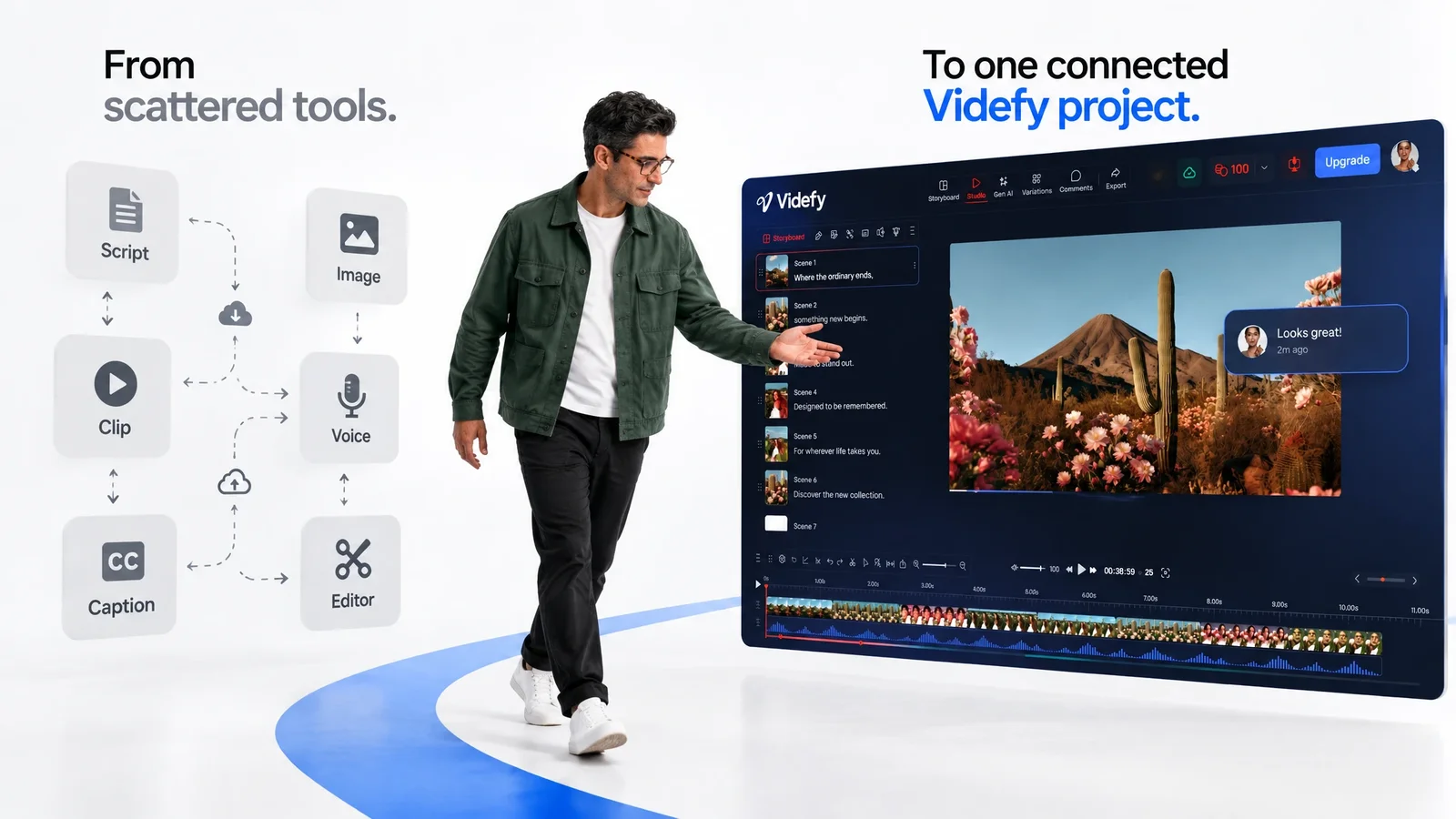
The usual AI video setup is a chain of tools: one for the script, one for images, another for clips, a voice tool, a caption app, and an editor to hold it together. Every single handoff means downloading, renaming, and re-uploading.
Videfy is an all-in-one video production workspace. Scripts, storyboards, generated images and clips, voiceover, captions, and exports live in one project, and your image, video, and audio galleries sit right alongside them. Nothing leaves the project unless you export it.
On Team plans, teammates, clients, and reviewers can leave feedback and approve the cut before export, and when the video needs an update next quarter, you update only the scenes that changed.
Why Creators Use Videfy as Their AI Video Generator
Videfy is a smart video creation platform where generation is one part of a complete production workflow. You get access to leading image and video models, including Nano Banana Pro and Seedance 2.0, plus the storyboard, timeline, voice, and captions to turn generated clips into a finished video.
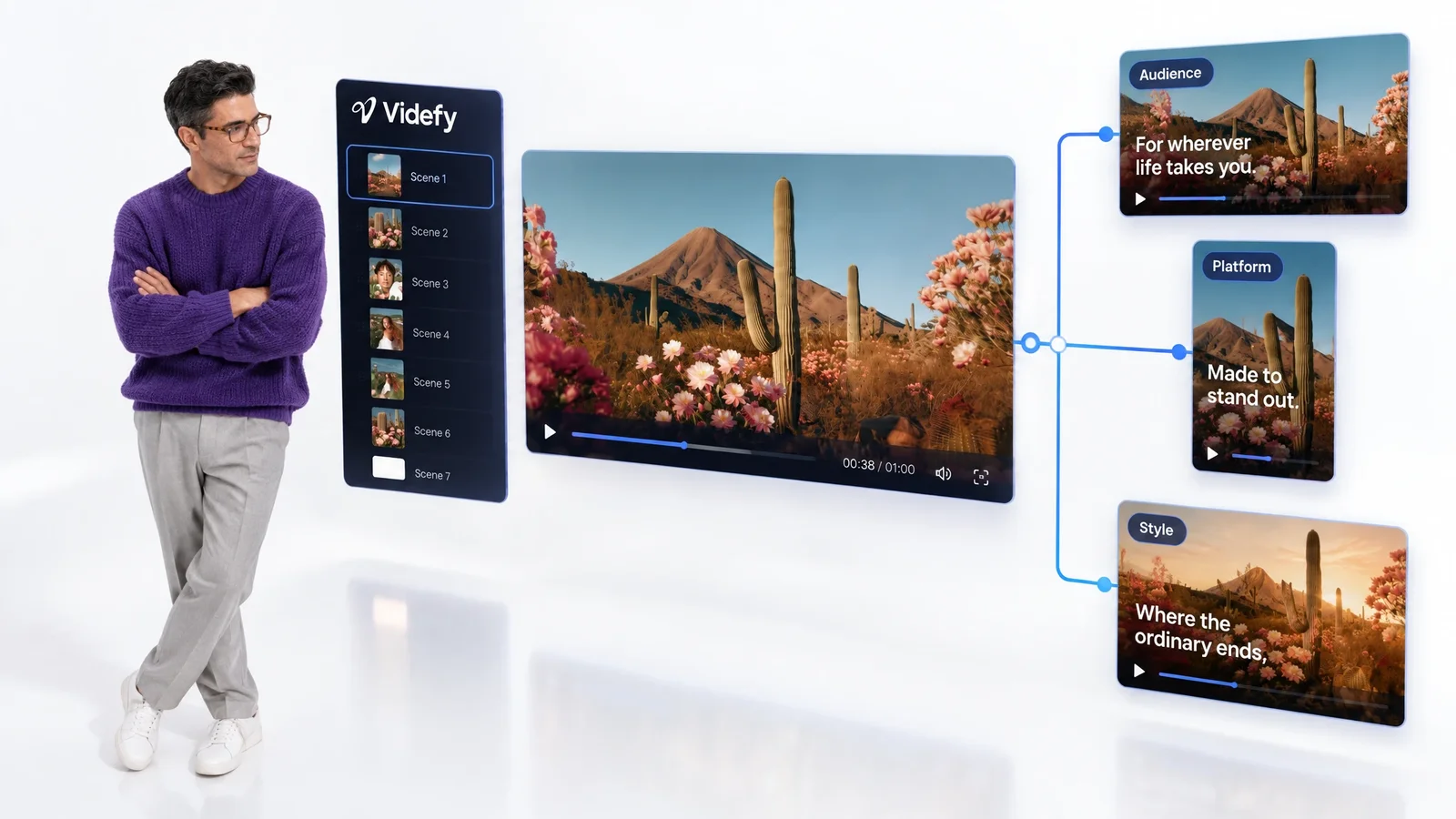
It’s built for video creation that scales. Once a video works, multi-variants on Creator and Pro turn it into versions for new audiences, platforms, and styles, and Video Automation repeats the workflow for the next batch.
The free plan includes 25 credits to test generation, with 720p watermarked exports. Paid plans start with Starter’s 350 monthly credits and 1080p exports, and go up to 4K on Pro.
Frequently asked questions
FAQ
AI video generation is the process of creating video footage from a text description, an image, or other input using a trained video model. In Videfy, generated clips become scenes in a larger project, where you edit them, add voiceover and captions, and export a finished video.
It depends on what you need after the clips are generated. If you only need short standalone clips, a model-only tool may be enough. If you need finished videos with scripts, voiceover, captions, editing, and versions for different channels, look for a platform that covers the whole workflow. Videfy handles all of these in one place.
Videfy gives you access to leading image and video models, including Nano Banana Pro for images and Seedance 2.0 for video. The Pro plan includes the full list of generation models and lets you bring your own API access. Available models may change as new ones are added.
It depends on your plan and the model you use. As a rough guide from Videfy’s pricing page, Starter’s 350 monthly credits cover about 12 Seedance 2.0 videos, Creator’s 1,500 cover about 53, and Pro’s 3,750 cover about 133. Images use far fewer credits than video.
A single generated clip is usually short, often just a few seconds, and the exact limit depends on the model. Longer videos are built by generating clips scene by scene and editing them together. In Videfy, that’s how you go from short clips to a full explainer or a long YouTube video.
Yes. Videfy’s free plan includes 25 credits for AI generation, plus storyboarding, galleries, media uploads, and video editing. Free exports are 720p with a watermark. That’s enough to try a few rounds of image generation and the editing tools before choosing a paid plan.
A standalone generator gives you clips. Videfy gives you clips inside a full production workflow: script, storyboard, generation, editing, voiceover, captions, translation, and export, plus multi-variants on Creator and Pro. You don’t have to download clips and rebuild the video in another editor.

Generate Your Next Video on aSmart Video Creation Platform
Write or paste a script, or let Lyra draft one, and Videfy builds the storyboard for you. Generate the clips each scene needs, then finish the video with voice, captions, and edits before exporting every version you need. You can start on Videfy’s free plan.