


AI Video Asset Generator forImages, Clips, and Scenes
Every video needs assets: product shots, backgrounds, characters, B-roll. Videfy’s AI video asset generator creates them from a short description, using leading AI models, so you can place them in the scene that needs them. You can edit, swap, or keep each one in the same project.

From Idea to Finished Video
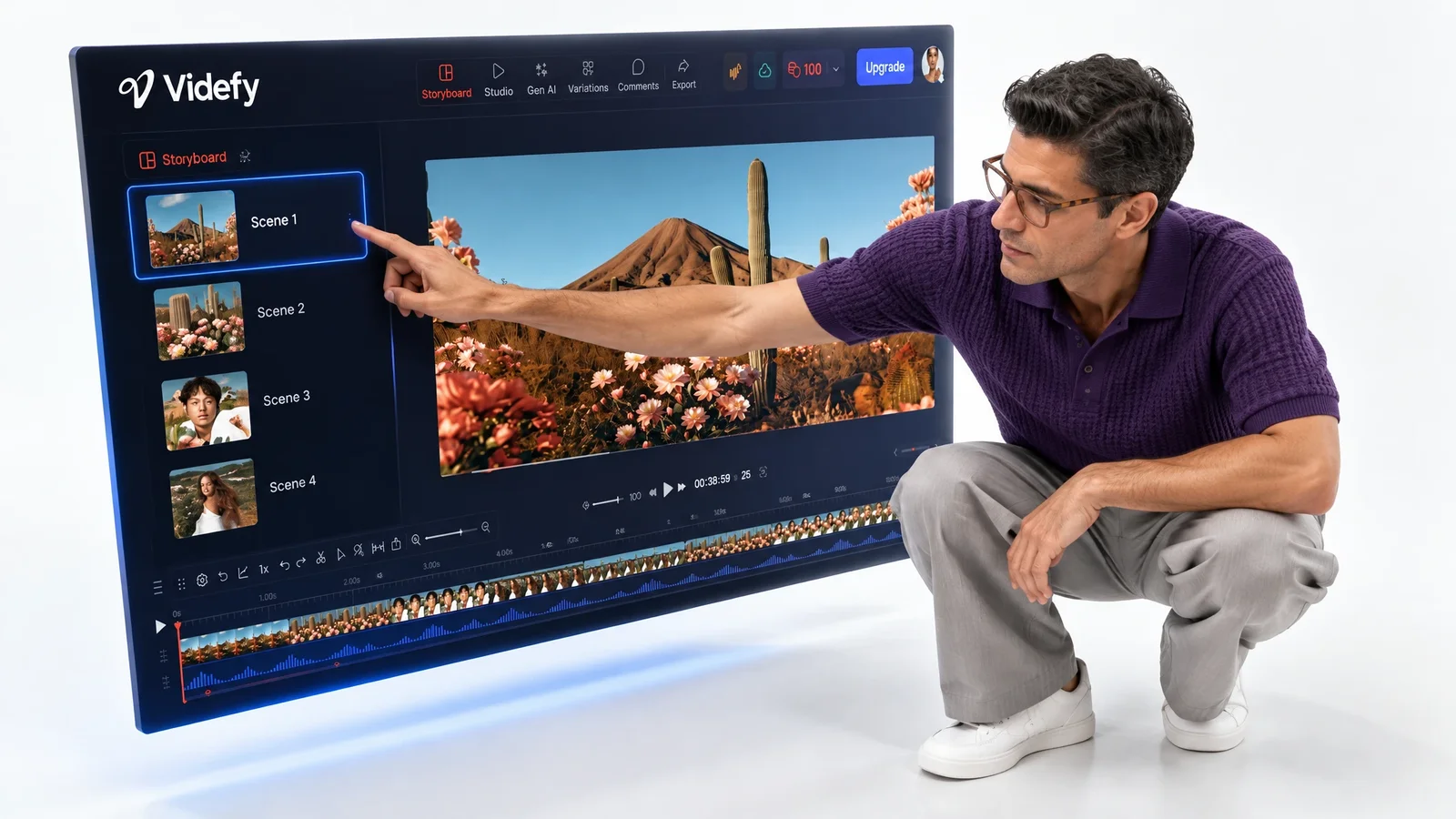
An idea becomes a script, and the storyboard shows which assets each scene needs. From there, generate what’s missing, upload what you have, and carry everything into editing, voiceover, captions, and export.
What You Can Do With Videfy
Generate Images, Clips, and Characters
Describe what you need in plain words, like “a ceramic mug on a wooden table, soft window light,” and Videfy generates it. The same works for short clips, backgrounds, characters, and full scenes. Each result lands in your galleries, which are shared across projects, so it’s ready for this scene and the next video too. Make a few versions and pick the strongest.

Edit Assets Without Regenerating
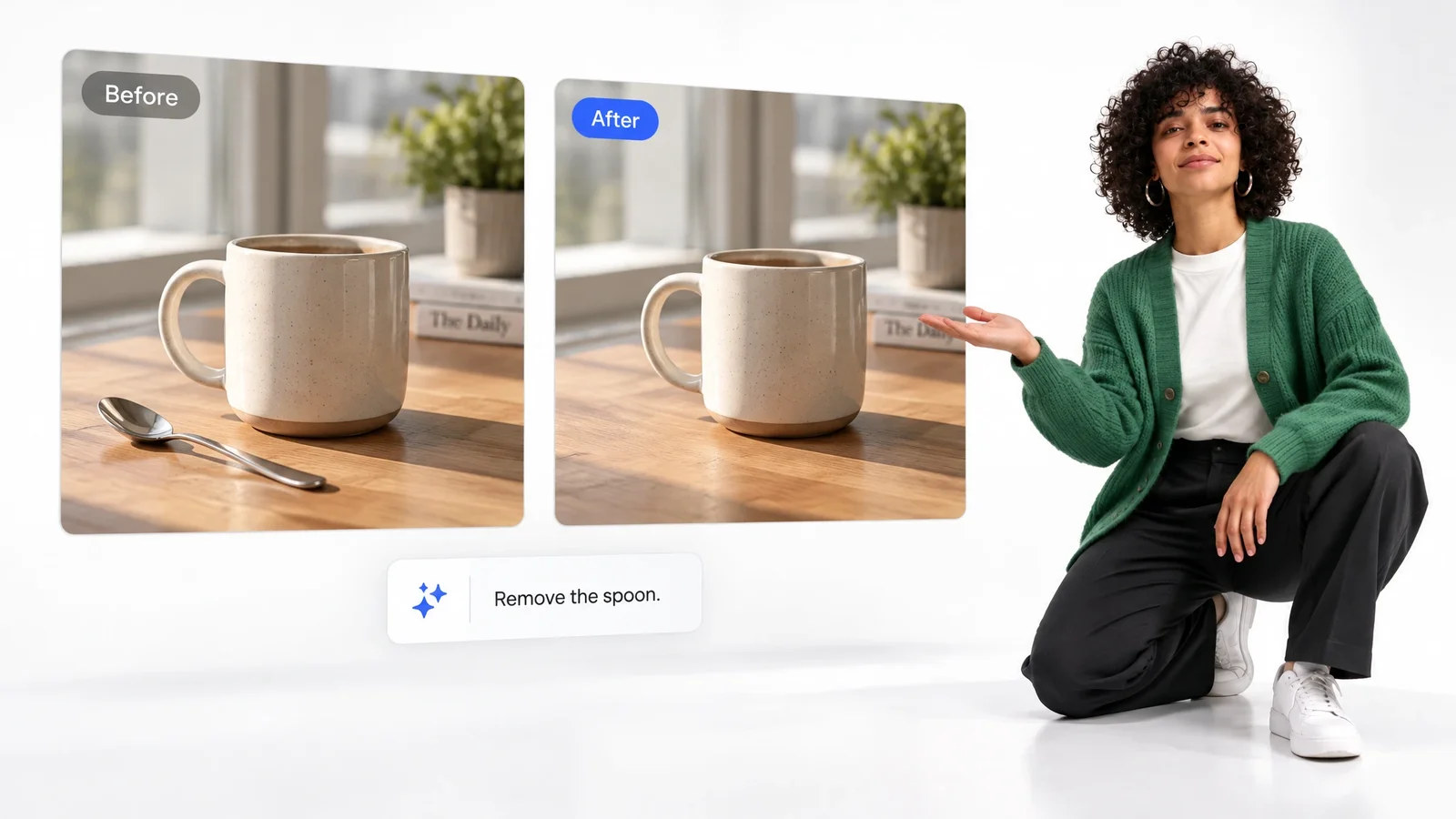
A generated image doesn’t have to be perfect on the first try. Remove or replace an object, change the background, or improve the image quality, and the rest of the image stays as it was. Fixing one detail is usually faster than prompting from scratch, and you keep what already worked. Your own photos can be edited the same way.
Mix Generated and Uploaded Media
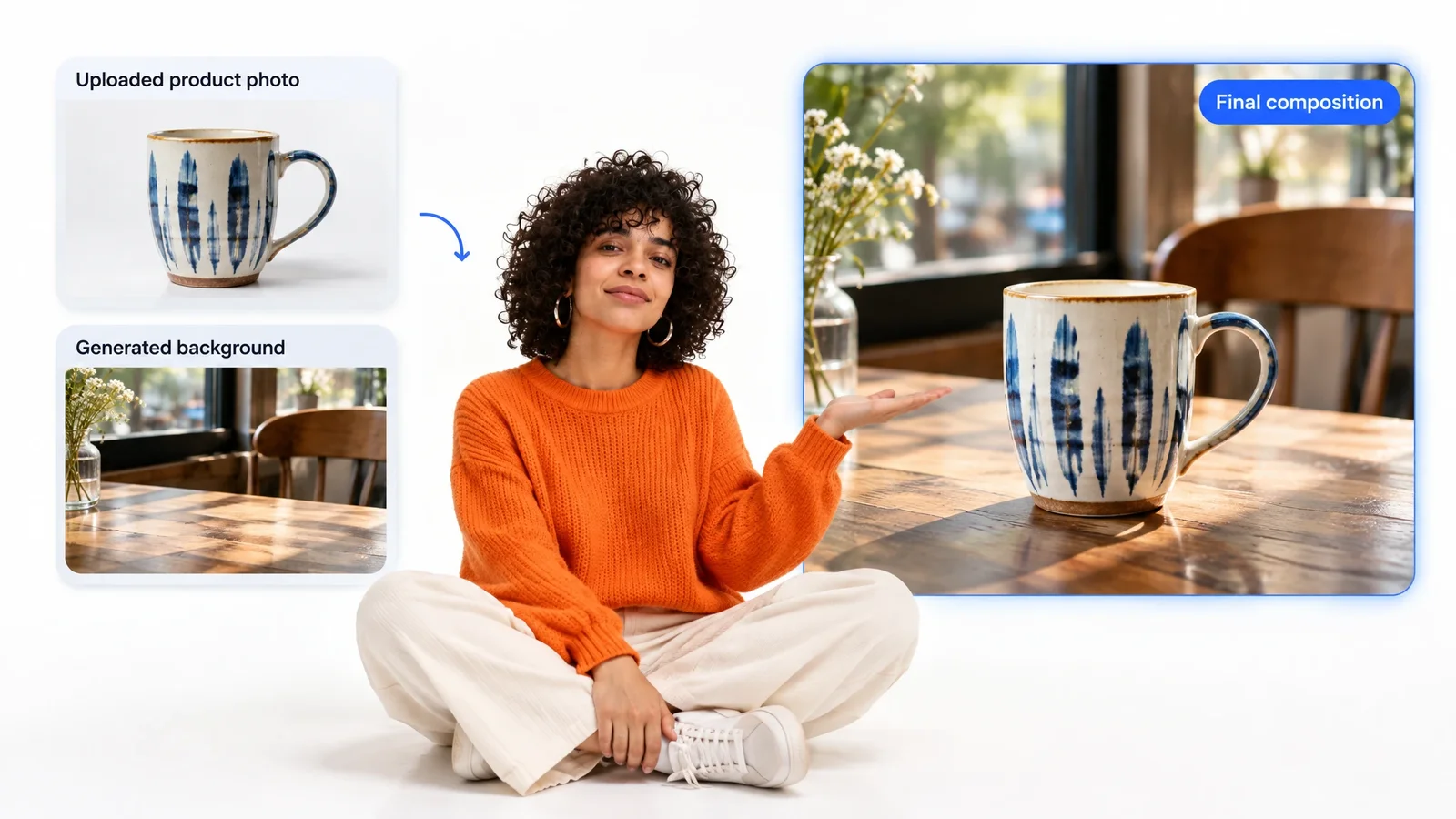
Generated assets work alongside your own. Upload product photos, logo files, screen recordings, or footage from a shoot, and use them in the same scenes as generated backgrounds or B-roll. Real products stay real, and the AI fills the gaps you couldn’t film. Brands usually need their actual product on screen, and a generated lookalike won’t pass review.
Asset Generation in the Video Creation Workflow
Idea → Script → Storyboard → Asset Generation → Video Generation → Editing → Voiceover/Audio → Subtitles → Render/Export
- Idea

- Script
- Storyboard
- Asset Generation
- Video Generation
- Editing
- Voiceover/Audio
- Subtitles
- Render/Export
Asset generation is the fourth stage, right after the storyboard. The storyboard decides what each scene needs, and this stage produces it: the images, characters, backgrounds, and clips that later get animated, edited, and voiced over.
Skipping straight to asset generation without a storyboard is where credits disappear. You end up generating shots you don’t use, or regenerating ones that don’t match the scenes around them. When each asset has a clear job in a specific scene, the first few attempts are far more likely to work.
In Videfy, generated assets stay connected to the rest of the video creation workflow, so video generation, editing, voiceover, and subtitles can use them without any export or re-upload.

How to Generate Video Assets With AI
Start from the storyboard, so every asset you generate already has a scene waiting for it.
List What Each Scene Needs
Open the storyboard first and note the missing assets for each scene. Mark which ones you’ll generate and which you already have on file.
Write a Specific Prompt
Describe the subject, setting, lighting, and style in one or two sentences. Specific prompts tend to get usable results faster, and they use fewer credits along the way.
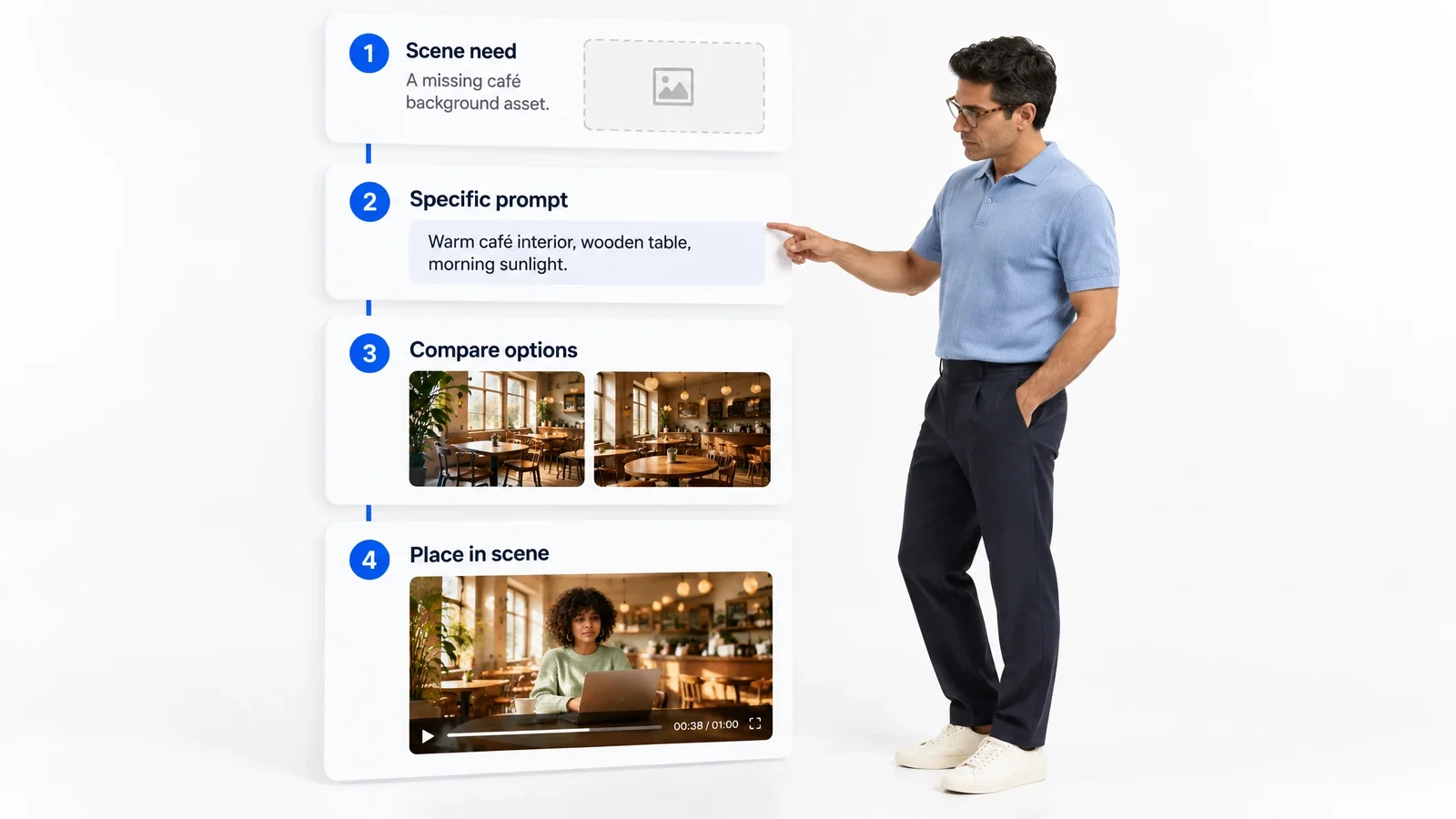
Generate and Compare
Create a few options, compare them side by side against the scene, and keep the one that fits. Edit small details in the image instead of starting over.
Place It in the Scene
Use the chosen asset in its scene on the timeline, then move on to editing, voiceover, and captions. Everything stays in one project, ready for export.
Keep Creative Control Over Generated Assets

Generated assets are drafts. You decide which ones make the cut, which need a tweak, and which get replaced by a real photo or shot. If a character looks off or a background clashes with your brand colors, fix that detail or swap the asset before it reaches the edit.
On the timeline, each asset is a layer you control. Trim clips, adjust timing, add text over images and clips, and use keyframes to move elements. If you’d rather describe a change, type it in plain language and let Lyra, Videfy’s AI creative director, make the edit. The AI handles the making, but choosing what’s right for your audience stays with you and your team.
AI Video Assets forDifferent Projects
AI Assets for Product Videos
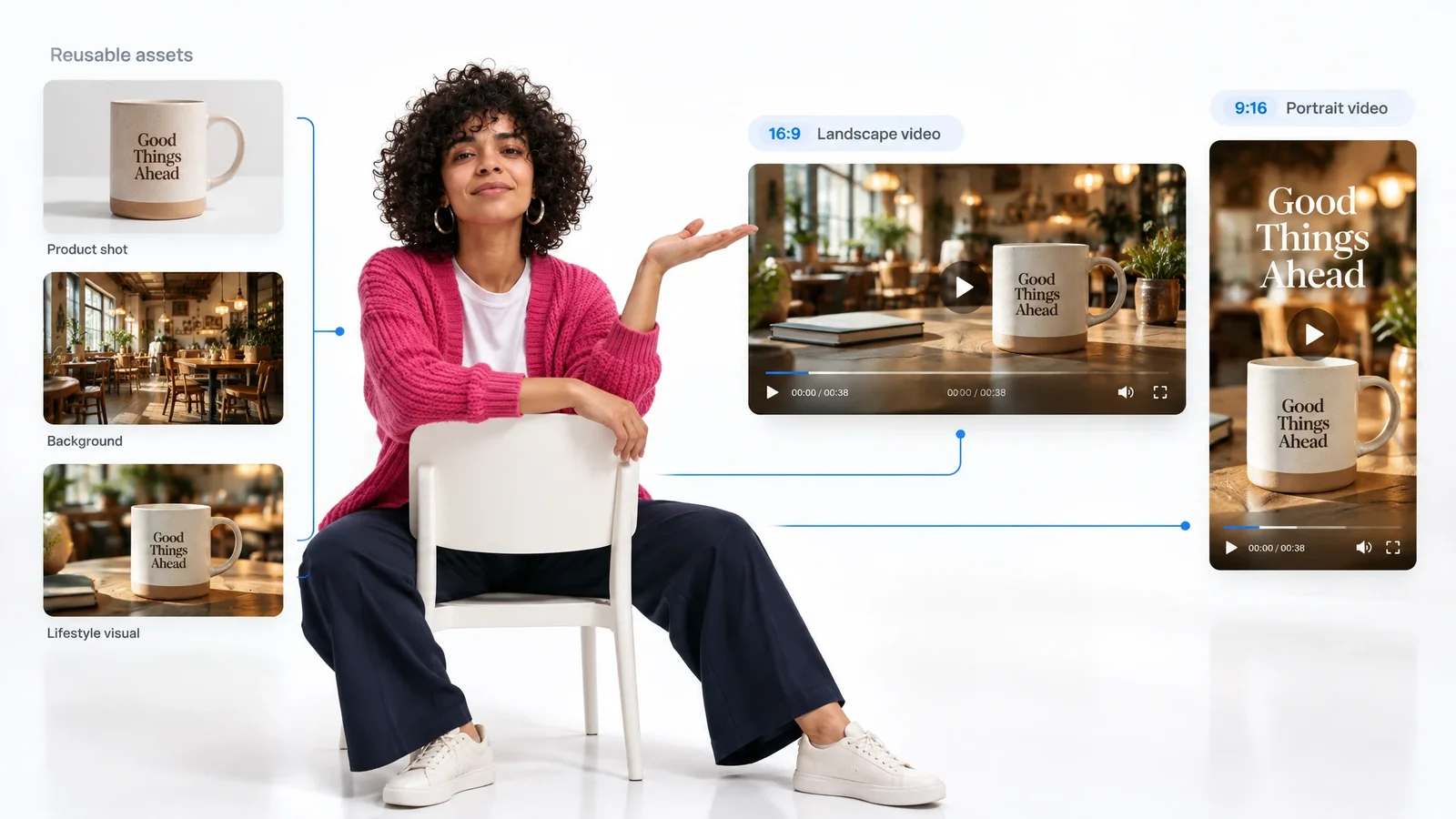
Keep the real product photo, and generate everything around it: lifestyle backgrounds, seasonal settings, or a clean studio look. You can even change the background on the uploaded photo itself, so one product shot can appear in a dozen scenes without booking a new shoot each time.

AI Assets for Explainer and Training Videos
Abstract ideas and internal processes are hard to film. Generate diagram-style illustrations, simple characters, and scene backgrounds that match your brand colors, then reuse them across a whole training series so every video looks consistent, without booking an illustrator for every update.

AI B-Roll for Social Media Videos
Short videos burn through visuals quickly. Generate B-roll clips and backgrounds for each beat of the script, and try a few different styles before picking one. It’s an easy way to keep up a daily posting schedule without filming every single shot.
AI Assets for Localized Campaigns
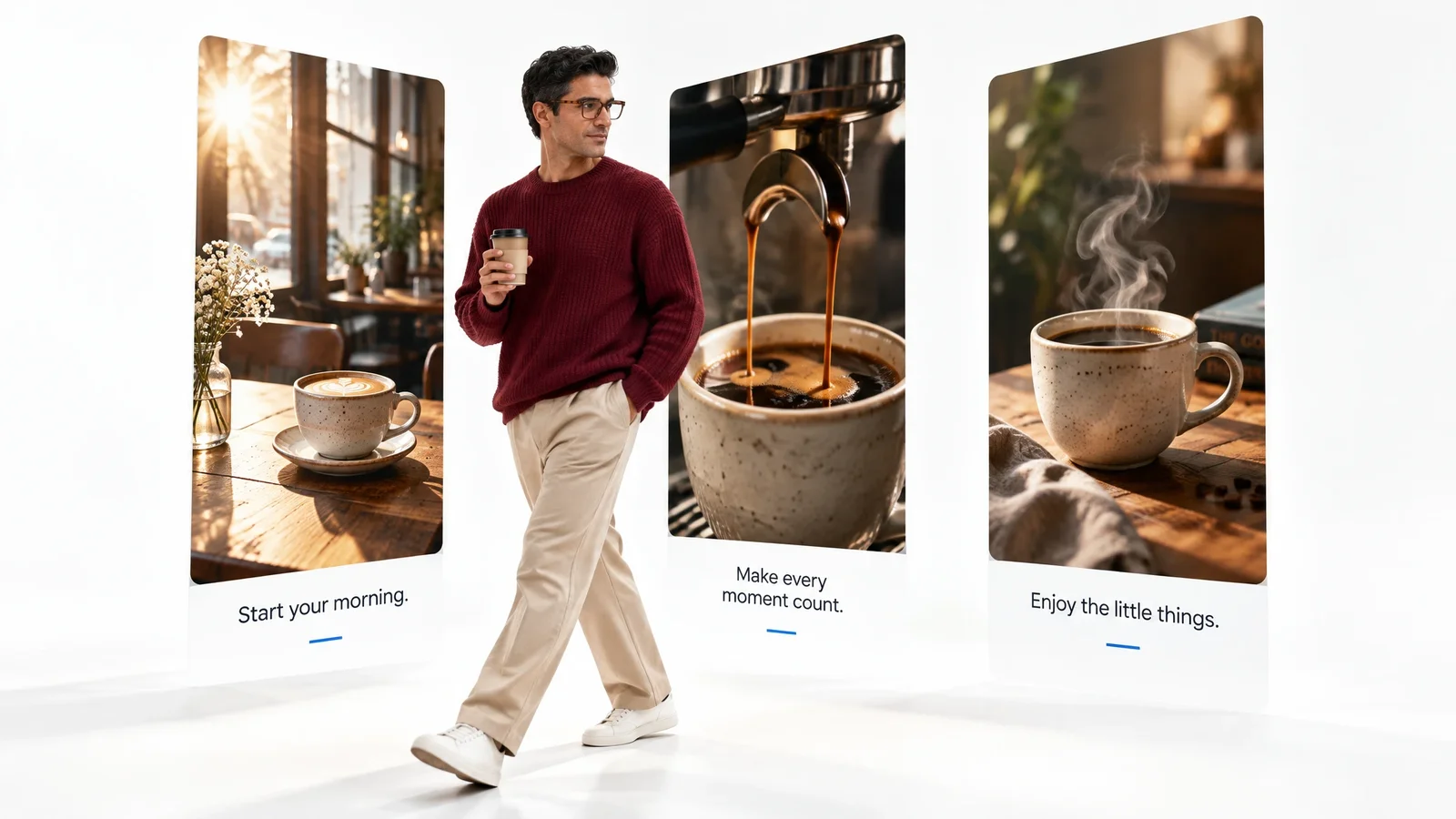
When a campaign runs in several markets, regenerate backgrounds or settings to fit each region while the product and message stay the same. Pair the new visuals with translated voiceover and captions, and a Tokyo version and a Madrid version can share one edit.

Manage AI-Generated Video Assets in One Place
Generating assets in one tool and editing in another creates a familiar mess: downloads folders full of near-identical images, file names that mean nothing a week later, and no record of which version made it into the final cut.
Videfy is an all-in-one video production workspace, so generated and uploaded assets live next to the storyboard, timeline, voiceover, and captions. You can see which asset sits in which scene, and on Team plans, teammates and clients can leave feedback and approve the work before export.
When you come back for an update or a new language version, the assets are still there. Swap the ones that changed and leave the rest alone.
Why Creators Use Videfy as Their AI Video Asset Generator
Videfy is a smart video creation platform. Asset generation is one step in it, sitting between planning and editing, which means the assets you create already have a clear place to go in your video.
It’s also built for video creation that scales. Once a set of assets works for one video, pull it from your galleries or open the past project for the next one, and adapt it for other languages, platforms, or formats without regenerating everything. Creator and Pro plans also support variants for external A/B testing.
You can try it on the free plan, which includes 25 credits for generating assets, plus storyboarding, media uploads, and editing. Paid plans add more monthly credits, more generation models, and higher export quality.
Frequently asked questions
FAQ
An AI video asset generator creates the individual pieces a video is built from, such as images, short clips, backgrounds, characters, and scenes, based on a text description. In Videfy, those assets go straight into your project, where you can edit them and place them in the scenes that need them.
You can generate images, short video clips, characters, backgrounds, objects, and full scenes from a description. Videfy uses leading AI models for generation. You can also upload your own photos, footage, logos, and screen recordings and use them alongside the generated assets.
Yes. You can remove or replace objects, change backgrounds, and improve image quality without regenerating the whole image, and the same tools work on photos you upload. On the timeline, you can trim clips, add text, and animate elements with keyframes. For broader changes, describe them in plain language and Lyra applies the edit.
Yes. Videfy’s free plan includes 25 credits for generating assets, plus storyboarding, galleries for images, video, and audio, media uploads, and video editing. Free exports are 720p with a watermark. Paid plans add monthly credits, more generation models, and exports up to 1080p, 2K, or 4K depending on the plan.
They can, with some direction. Include your brand colors, style, and mood in the prompt, and keep the wording consistent across scenes. When a result is close but off, edit the detail instead of regenerating. Real brand elements, like your logo or product photos, are best uploaded rather than generated.
Generate assets for a specific scene instead of in bulk, so each one has a clear purpose. Keep them with the edit, not in a downloads folder, give scenes clear names, and remove rejected versions as you go. Before export, have a teammate or client approve the final set.
Yes. On Videfy’s Team plans, teammates, clients, or reviewers can work in a shared workspace, leave feedback, and approve the work. Reviewing assets before they go into the final edit means fewer changes later, and everyone sees the same versions instead of screenshots sent back and forth over chat.

Create Your Next Video’s Assets on aSmart Video Creation Platform
Check what each scene needs and describe the missing pieces. Generate them, fix the details that are close, and upload anything that has to be real. Then build the video around them. You can start on Videfy’s free plan.